Domain and Certificate Management
❗ Important: Domain and Certificate Management is being rolled out to select customers and is not enabled for all marketplaces. This topic applies only when the feature is enabled for your marketplace. If Domain and Certificate Management does not appear under SETTINGS at Manage > Marketplace > Settings, contact your AppDirect technical representative to request it.
Marketplace Managers can set up a custom domain and manage SSL certificates for their marketplace from Settings. You can configure DNS, verify your domain, and choose an AppDirect-managed certificate or your own certificate. You must be signed in as a Marketplace Manager.
Open Domain and Certificate Management
📝 Note: This documentation page may refer to Manage > Marketplace in navigation steps. If the Manage option is not available in your navigation, click the grid icon on the top-left corner of your header and click Marketplace.
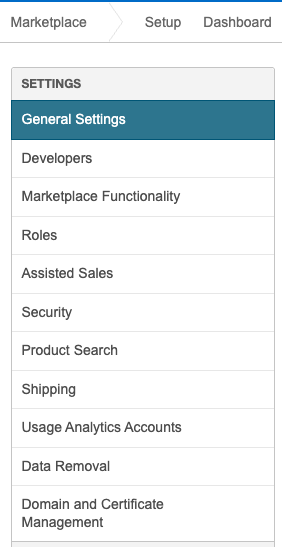
- Go to Manage > Marketplace > Settings.
- Under SETTINGS, click Domain and Certificate Management.
Certificate Management dashboard
The dashboard has two sections: Current Status and Actions.
Status updates automatically about every 30 seconds. Click Refresh at the top of the page to update status immediately.
Before you set up a custom domain, the dashboard shows your current marketplace URL and AppDirect-managed SSL. Manage Certificate is unavailable until a custom domain is activated. See Configure a custom domain to start setup.
After a custom domain is activated
Once your custom domain is active, the dashboard shows the custom domain and lets you manage SSL.
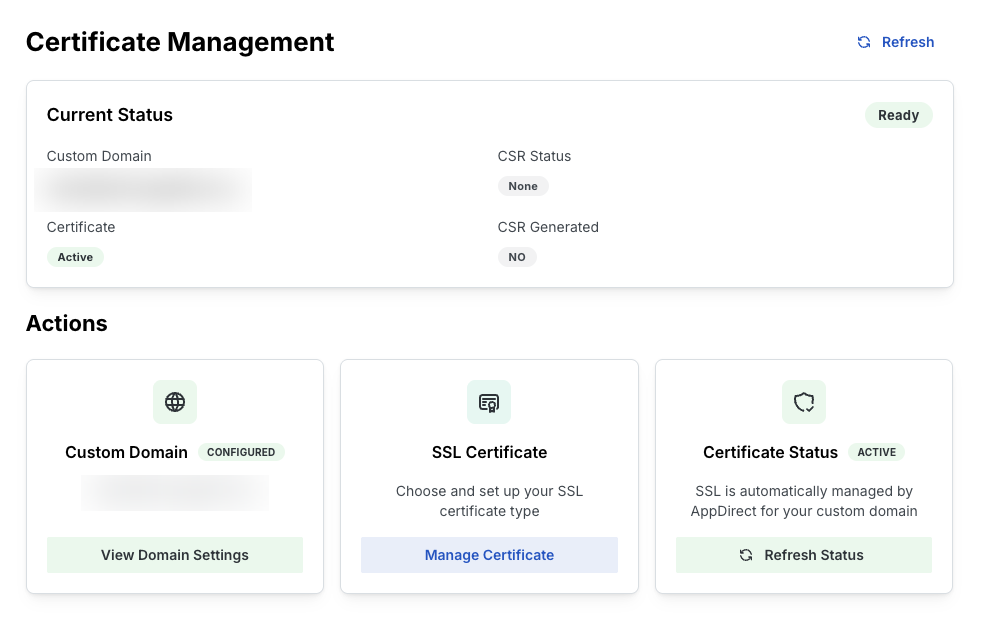
In the Current Status section, Custom Domain shows the URL you configured.
In the Actions section:
- Custom Domain shows CONFIGURED. Click View Domain Settings to review domain details.
- SSL Certificate — click Manage Certificate to choose or change your certificate type.
- Certificate Status shows ACTIVE when SSL is in place.
With a bring-your-own certificate
When you use your own certificate, the dashboard shows CSR and certificate details. You can renew the certificate before it expires.
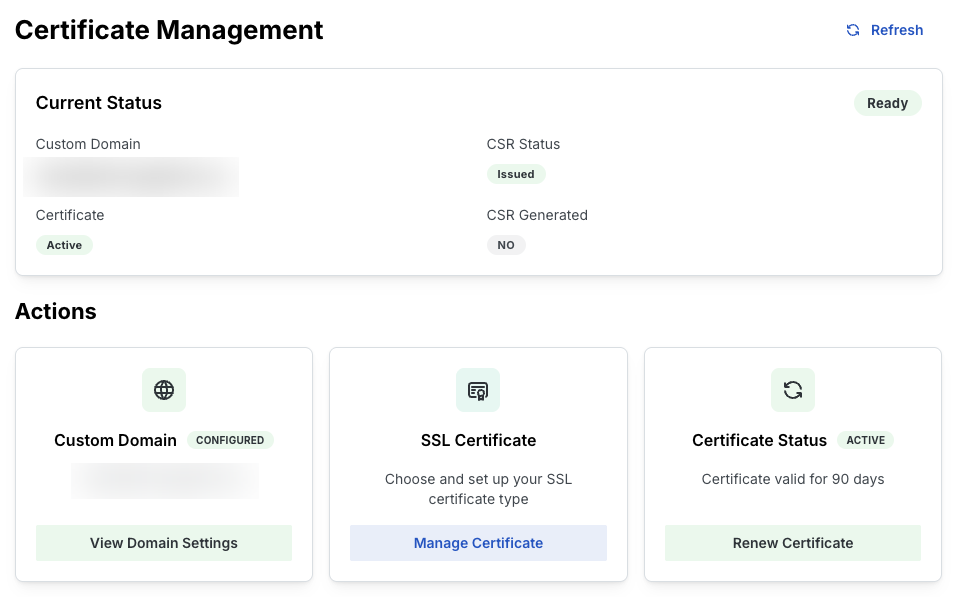
In the Current Status section:
- CSR Status may show Issued when a certificate is deployed.
- Certificate shows Active.
In Actions, Certificate Status may show how long the certificate is valid. Click Renew Certificate to start renewal. This option appears only for bring-your-own certificates.
AppDirect-managed certificates renew automatically. No action is required on the dashboard.
When renewal is in progress
If you started a certificate renewal and have not uploaded the signed certificate yet, the dashboard shows Action Required.
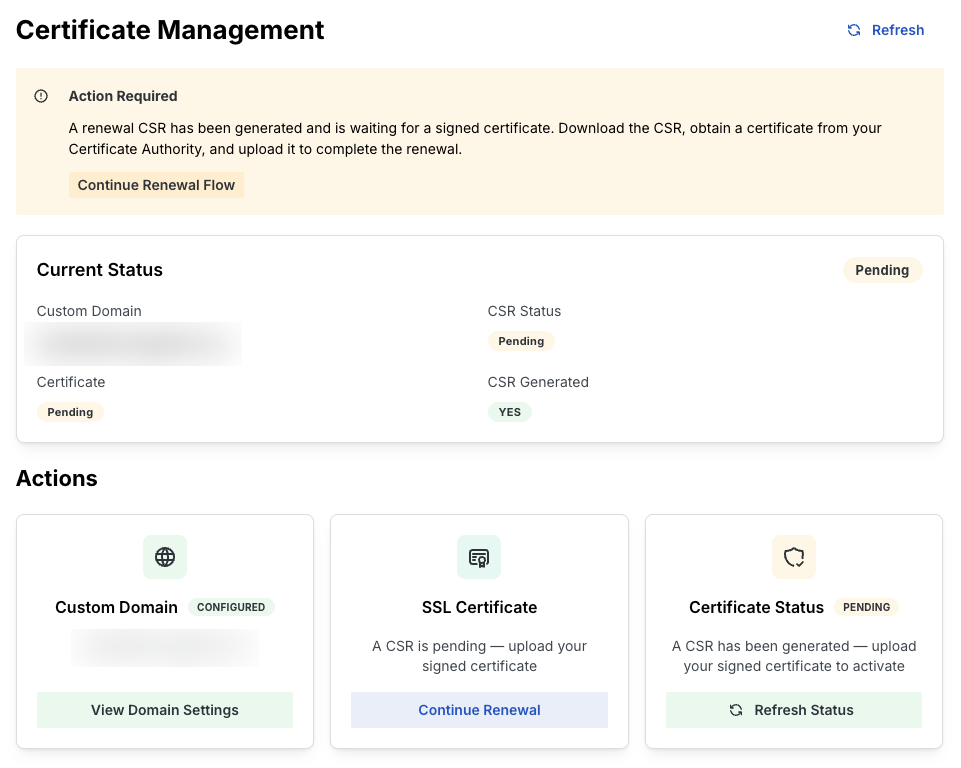
An alert explains that a renewal CSR is waiting for a signed certificate. Click Continue Renewal Flow or Continue Renewal to return to the renewal steps.
In Current Status, CSR Status and Certificate may show Pending while renewal is in progress. CSR Generated shows YES.
Your existing certificate stays active until you upload and deploy the replacement.
Status values
The overall status badge at the top of Current Status can show:
- Ready — configuration is complete and no action is needed.
- Pending — a step is in progress, such as DNS verification or certificate upload.
- Action Required — you need to complete a step, such as uploading a signed certificate.
Recommended certificate option
AppDirect recommends an AppDirect-managed certificate for most marketplaces. AppDirect provisions and renews the certificate automatically. No CSR is required.
Use your own certificate only if you must use a specific certificate authority for regulatory or contractual reasons.
Related topics
- Configure a custom domain
- Choose an SSL certificate for your custom domain
- Bring your own certificate
- Renew a marketplace certificate
Contact your AppDirect technical representative
Contact your AppDirect technical representative in these cases:
- Domain and Certificate Management is not available for your marketplace.
- You need to change an activated custom domain or revert to the default AppDirect URL.
- Self-service steps fail after you retry.
- You need certificates not managed in this UI, such as server-to-server certificates.
After you activate a custom domain, you cannot change it or revert to the default URL in this UI. AppDirect does not add redirects from your old URL to the new URL.
Was this page helpful?
Tell us more…
Help us improve our content. Responses are anonymous.
Thanks
We appreciate your feedback!