Price Books
What is a price book?
A price book is a set of customized product prices that marketplace owners use to offer special prices to specific customers, companies, or segments. Each entry ties a catalog product or edition to pricing that can differ from the default marketplace price (flat amounts, markup or markdown, and—where enabled—sale and wholesale amounts).
Offering highly customized pricing helps win new customers, retain existing customers, and promote specific products.
When to use a price book
- Offer negotiated or segment-specific pricing without changing the base catalog for everyone.
- Apply reseller wholesale and customer sale pricing where your marketplace supports it.
- Resolve pricing by company, segment, or (when enabled) billing relationship rules.
Use the Price Books page to create pricing plans and assign specific product editions, customers, and companies. To open the Price Books page, go to Manage > Marketplace > Products > PRICE MANAGEMENT | Price Books.
📝 Note:
- The Price books feature is enabled by default for the customers on Enterprise plan. However, you need to enable Price Books directly via Settings. Navigate to Settings > Billing > Price Books and toggle the feature to On.
- Customers on non-Enterprise plans who wish to use Price Books can contact their AppDirect technical representative to request an upgrade or custom enablement.
An entry in a price book combines product details and customized pricing. You can set a flat product price or calculate adjusted pricing based on a percentage of deviation (markup/down) you can define. When cost-based pricing is enabled, you can also configure markup from cost or MSRP. See Cost-based pricing.
After you open a price book, use the Products area to add catalog products to price books and to work with the products that are already in the price book.
-
Products in price book - This tab lists everything that belongs to the price book . New additions appear at the top and are highlighted so recent changes are easy to spot. Use the Search field on this tab to find a product or edition that is already in the list.
-
Products in Catalog - Use this tab when you need to pick additional products or editions from the marketplace catalog and add them to the price book. It is not used to search products that are already stored in the book.
-
Sale and Wholesale amounts - You can add the sale and wholesale amounts and apply markups or markdowns where your marketplace supports them (for example, for reseller pricing or for direct and indirect billing arrangements).
-
Billing relationship and price book resolution -
📝 Note: The Billing Relationship in price books feature is in Early Availability (EA). Features in Early Availability status are only available in production to a limited number of customers based on fit with specific use cases. For more information about Early Availability status, see Product lifecycle phases.
When Billing Relationship support is enabled for your marketplace, price books can apply different default pricing for direct and indirect billing in the same marketplace. Billing Relationship is the highest-priority attribute when the platform resolves which price book to use. Resolution aligns with the Billing Relationship configured in marketplace Settings, so you can keep an appropriate default price book for each relationship type while still using segments, companies, and other rules for more specific scenarios.
Resellers can receive different rates when purchasing for their own consumption versus for resale, depending on how price books and marketplace settings are configured.
For the Billing Relationship control on a price book and related prerequisites, see Create and activate price books.
📝 Note: If access is enabled before the feature is fully rolled out to your environment, the Billing Relationship dropdown can appear empty.
-
Clearing prices — When you need to clear amounts you already saved, use the removal actions on the line you are editing. Depending on the control, you can:
- Remove all sale and wholesale prices at once
- Remove only sale prices
- Remove only wholesale prices
If you leave a price empty in the price book, the line uses the marketplace price. Any sale or wholesale amount you save in the price book overrides that marketplace default for the companies and segments the book applies to.
For step-by-step instructions, see Create and activate price books and Manage price books.
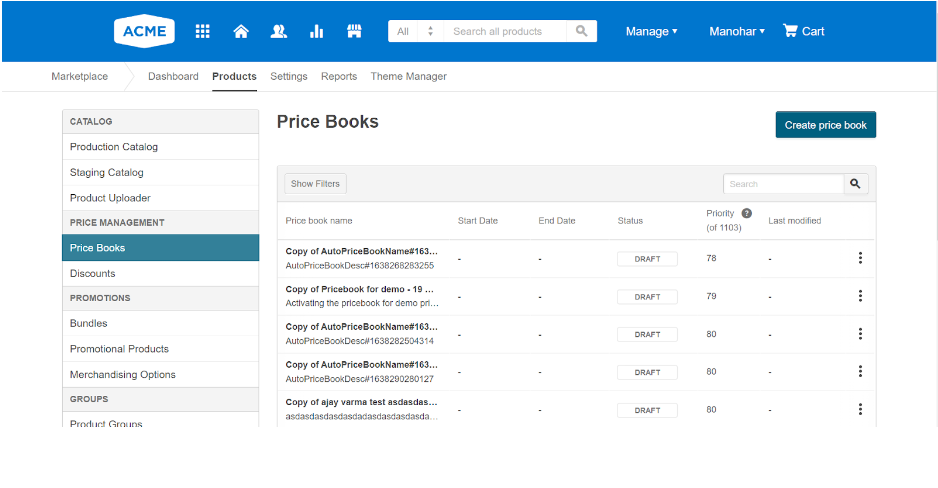
You can also create segments to group customers or companies based on various attributes, such as location or business value. Once segments are created, you can easily assign a specific pricing plan to a segment to apply the exact pricing to all customers.
Related topics
Was this page helpful?
Tell us more…
Help us improve our content. Responses are anonymous.
Thanks
We appreciate your feedback!