Choose an SSL certificate for your custom domain
❗ Important: Domain and Certificate Management is being rolled out to select customers and is not enabled for all marketplaces. This topic applies only when the feature is enabled for your marketplace. If Domain and Certificate Management does not appear under SETTINGS at Manage > Marketplace > Settings, contact your AppDirect technical representative to request it.
After you activate a custom domain, choose how SSL is managed for your marketplace. You can use an AppDirect-provided certificate or your own certificate from a certificate authority.
AppDirect recommends an AppDirect-provided certificate for most marketplaces. For these, AppDirect provisions and renews the certificate automatically. No certificate signing request (CSR) is required.
Use your own certificate only if you must use a specific certificate authority for regulatory or contractual reasons.
Before you start
Your custom domain must be activated before you can manage SSL. See Configure a custom domain if you have not completed domain setup.
Open certificate type selection
📝 Note: This documentation page may refer to Manage > Marketplace in navigation steps. If the Manage option is not available in your navigation, click the grid icon on the top-left corner of your header and click Marketplace.
- Go to Manage > Marketplace > Settings.
- Under SETTINGS, click Domain and Certificate Management.
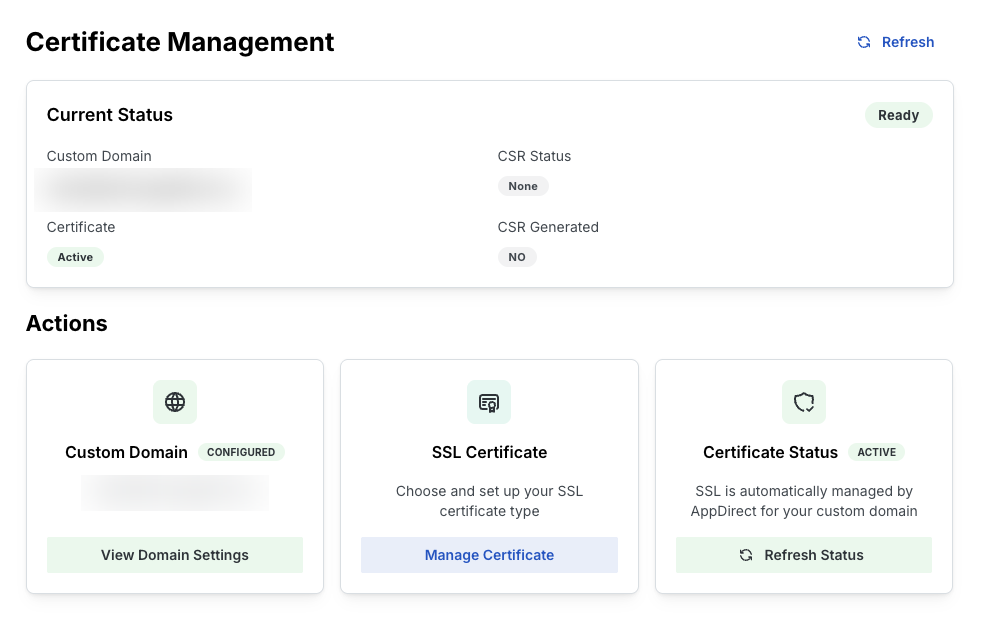
- On the Certificate Management dashboard, find the SSL Certificate card in Actions.
- Click Manage Certificate. This option is not enabled until your custom domain is active.
AppDirect-provided certificate
An AppDirect-provided certificate is entirely managed by AppDirect. The certificate is provisioned and renewed automatically. When an AppDirect-provided certificate is active, the AppDirect Provided Certificate card shows Currently active.
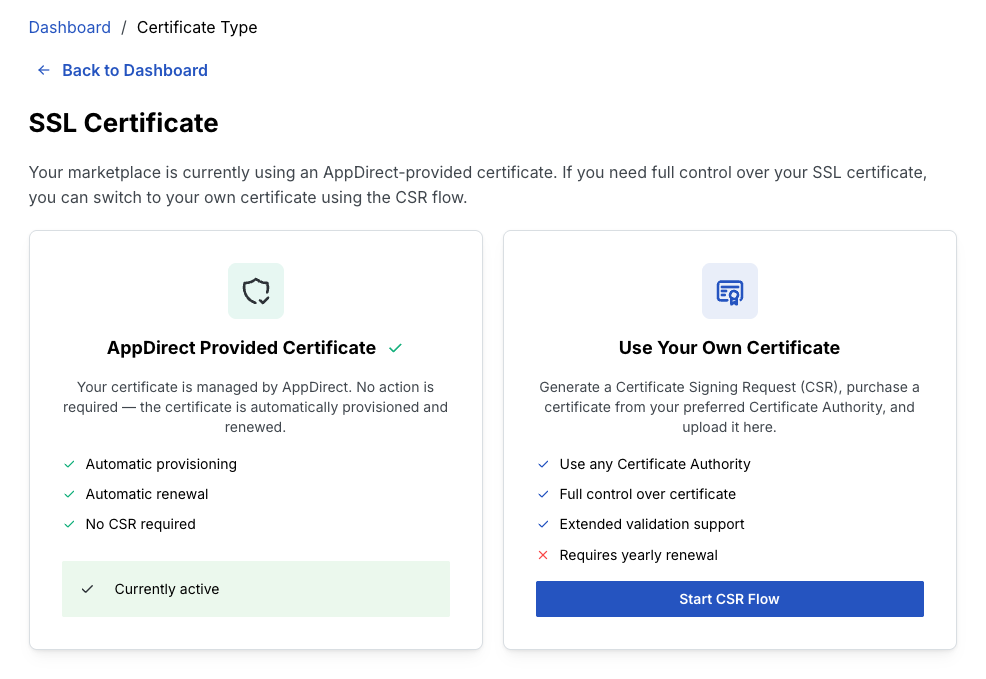
Use your own certificate
To use your own certificate, click Start CSR Flow on the Use Your Own Certificate card. You generate a CSR, submit it to your certificate authority, and upload the signed certificate.
Your own certificate requires yearly renewal. You are responsible for obtaining and uploading renewed certificates.
See Bring your own certificate for the full CSR flow.
Switch to an AppDirect-provided certificate
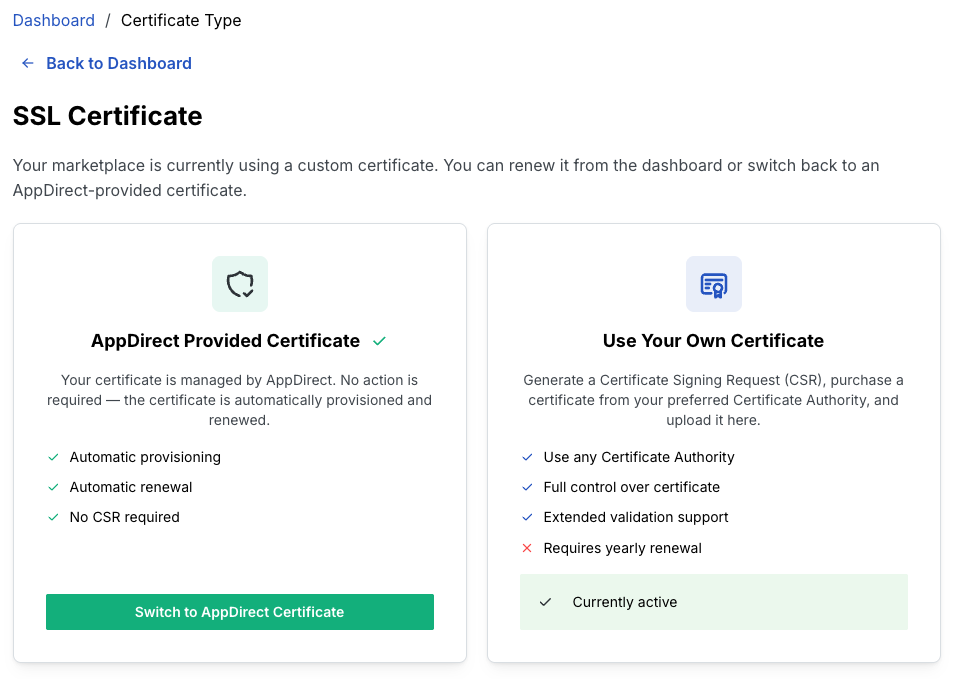
If your marketplace uses your own certificate, you can switch back to an AppDirect-provided certificate at any time.
- On the SSL Certificate page, find the AppDirect Provided Certificate card.
- Click Switch to AppDirect Certificate.
- In the Switch to AppDirect Certificate dialog, read the confirmation message. This removes your uploaded certificate and private key. AppDirect re-provisions an AppDirect-provided certificate on your custom domain.
- Click Switch to AppDirect Certificate to confirm.
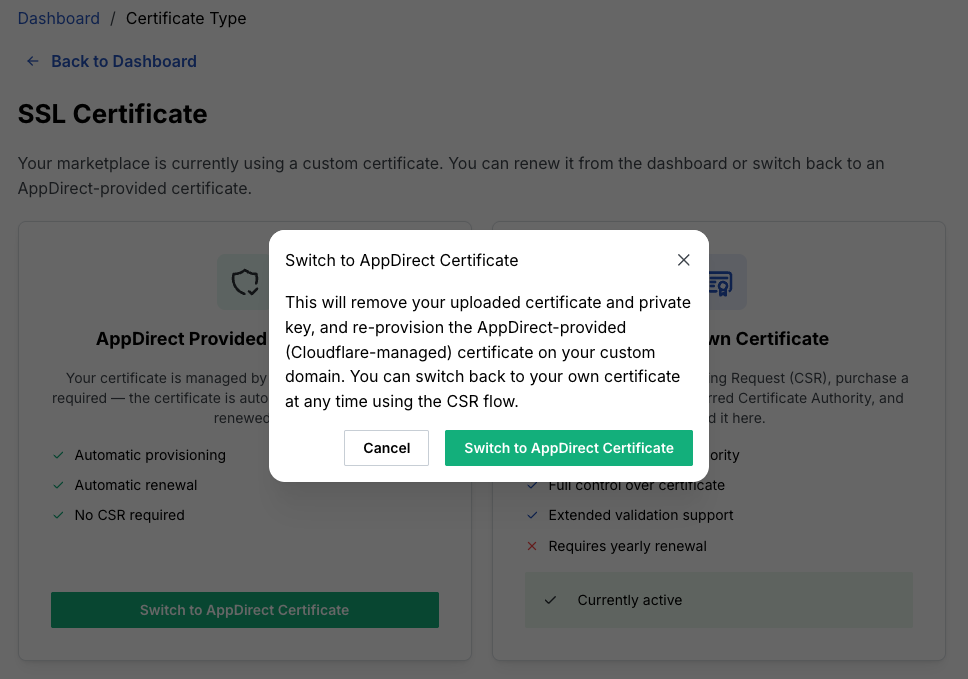
You can switch back to your own certificate later using the CSR flow.
Next steps
Was this page helpful?
Tell us more…
Help us improve our content. Responses are anonymous.
Thanks
We appreciate your feedback!