Create products in the staging catalog
This section explains the procedure to create a new product. When you create a new product it is automatically saved to the Staging Catalog. The Create product function is labeled 1 in the following image:
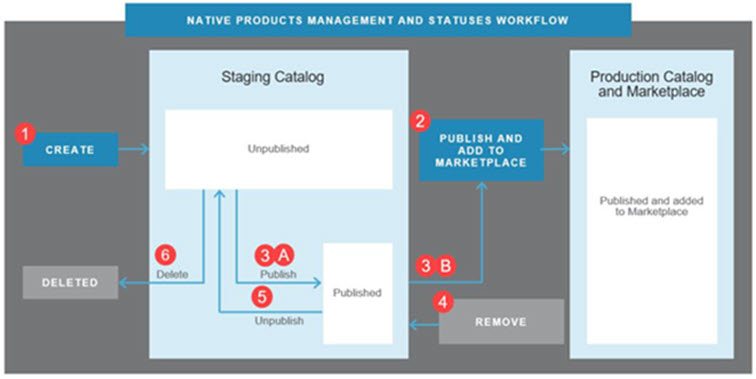
For an introduction to this image and how Marketplace Managers manage products in the Staging and Production catalogs, see Manage product catalogs.
To create products in the staging catalog
📝 Note: This documentation page may refer to Manage > Marketplace in navigation steps. If the Manage option is not available in your navigation, click the grid icon on the top-left corner of your header and click Marketplace.
- Go to Manage > Marketplace > Products > Catalog | Staging Catalog. The Staging Catalog opens.
- Click Create Product. The Create New Product page opens.
- Enter a product name. This is the name shown to marketplace customers and administrators when they shop, purchase, use, and manage the product.
- Select one of the Service Type options:
- Standalone Product—Does not require another related product before it can be listed, sold, and used on the marketplace.
- Add-on for Product—Requires an association with a standalone product before it can be listed, sold, and used on the marketplace.
- Select one of the Product Type options—Typically this is Web App. It is possible to make other product types available to your marketplace by contacting your AppDirect account representative. For example, if you arranged to sell domains, Domains would be a Product Type option.
AppDirect recommends that if you are selecting a downloadable product type, select Download. If you select the Download (legacy) product type, and you create features for that product, the Features tab does not appear in the product profile. - Select one of the Integration Type options to determine if this product is automatically provisioned.
- Referral Only—Products have a profile on the marketplace for marketing purposes only. Leads generated by the product's profile are redirected to the vendor's website (see Leads). Sales for referral products are not completed on your marketplace.
- Full Integration—Products are configured by the vendor to integrate with AppDirect so that your marketplace can automatically provision the product after the customer completes the purchase on your marketplace.
- Select one of the usage model options. The usage model determines how many users can be assigned per purchase of the product. You cannot change the usage model setting after you create the product.
- Single user—Only the user who purchases a single-user product can use it and the product cannot be reassigned to another user. Additional users within the same company and marketplace in which it is sold can purchase the same product, and the same conditions apply. Company Administrators cannot assign or reassign single-user products, but they can cancel subscriptions. If a Company Administrator needs to cancel a subscription and remove the user, they must cancel the subscription before they can remove the user. The purchase behavior that Marketplace Managers and Company Administrators enable in the Company Settings determines which user roles can purchase products in marketplace companies. For more details, see Configure purchase restrictions and Configure company-level purchase behavior). Therefore, if you create a single user product, only users whose role has permission to purchase products can buy the single-user product that you are creating. If you prefer to create a product that the Company Administrator can purchase and then assign to any user, select Multiple Users.
- Multiple users—Multiple users can access and use the product. Different users can be assigned to it. Typically, Company Administrators purchase multi-user products and manage user access through assignment and unassignment.
- Select one of the Revenue Model options to determine how you charge for your product.
- Free—Product requires no payment, it is free of charge.
- One time—Product requires one payment in full.
- Recurring—Product requires multiple payments on a Developer-defined schedule, for example, monthly.
- Tiered—Product includes various unit increments for sale at a price per unit. This pricing model helps Developers offer price breaks for customers as they purchase more units.
- Read and agree to the linked terms and conditions.
- Click Create Product. The product is created and appears in the Product Dashboard.
Was this page helpful?
Tell us more…
Help us improve our content. Responses are anonymous.
Thanks
We appreciate your feedback!