Edit product profiles
Marketplace Managers can customize the content of each network product’s profile. This allows you to target your customers using the specialized language and marketing collateral that might be unique to your industry and matches other profiles on your marketplace.
To implement profile customization, you can copy any network product into the Staging Catalog where you can edit and preview the profile before publishing the customized version to your production environment.
The elements in the profile that you can customize are a subset of the configuration options located in the Product Dashboard. You can add or edit the following elements in the profile:
- Marketplace listing details
- Features including descriptions, reviews, questions, and so on.
- Customers and Media
- Support Information
- Resources
You can also select your preferred language from the supported locales to edit the product profiles irrespective of the user interface locale. For example, a marketplace user in Germany can edit an English product locale in a Deutsch marketplace UI. However, if the selected language is not supported for the product then the product is displayed in the default language.
For information about editing pricing, see Edit editions and pricing.
You cannot edit Integration settings.
To edit product profiles
📝 Note: This documentation page may refer to Manage > Marketplace in navigation steps. If the Manage option is not available in your navigation, click the grid icon on the top-left corner of your header and click Marketplace.
- Go to Manage > Marketplace > Products > Catalogs | Staging. The Staging Catalog opens.
- Click Add Network Product. The Add from the Network Catalog page opens.
- Locate the product you want to add to the Staging Catalog, then click Add to Staging or Request to Add if the product is configured to require the Developer’s approval. The Edit Marketplace Settings: {productName} dialog opens.
- Edit product marketplace settings as appropriate.
- Click Save. The product’s details page opens in Preview Profile mode and editing options in the top pane.

- Click Edit Profile to enter the Edit Mode, then click the area of the profile you want to edit. The top header is shown in edit mode in the following graphic.
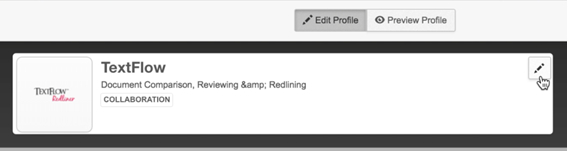
- Click the Pencil icon. The Marketplace Listing page opens.
- Select the language from the Product profile switcher to edit in any language profile available for the product. The products are displayed in their default language if the selected language is not supported.
- Edit one or more fields, then click Save.
- (Optional) Click one or more of the Profile & Branding options in the left pane, and make edits in the appropriate fields on the selected page.
📝 Note: You must click Save before leaving the page or your edits will be lost.
- Click Preview Profile (at the top of all Profile & Branding pages) to display the updated product’s profile.
- (Optional) Repeat step 6 through step 8 to make additional edits.
- Click Publish (at the top of all Profile & Branding pages) or Continue to Publish from the preview page to republish the updated product profile.
Was this page helpful?
Tell us more…
Help us improve our content. Responses are anonymous.
Thanks
We appreciate your feedback!