Edit network product editions
Marketplace Managers can edit network product editions to promote only the editions that make sense for their marketplaces.
For example, you can hide a small business edition of a product if your primary customer base is the enterprise. Additionally, you can manually edit the name of an edition for any reason, including having it appear in the language most appropriate for your customers. By default, the edition name appears as originally configured in the AppDirect Network Catalog.
To edit a network product edition
📝 Note: This documentation page may refer to Manage > Marketplace in navigation steps. If the Manage option is not available in your navigation, click the grid icon on the top-left corner of your header and click Marketplace.
- Go to Manage > Marketplace > Products > Catalogs | Production Catalog. The Production Catalog page opens.
- (Optional) Click Show Filters, then select Network Product from the Product Origin drop-down list. The Production Catalog displays only network products (the Type column displays From Network for each product).
- Click the gear icon > Edit Product next to the product you want to edit. The selected product’s Marketplace Listing page opens.
- Click Editions & Pricing | Editions > editionName in the left navigation pane. The selected edition’s product dashboard opens.
- Edit any of the fields or options in the Edition Information section (the Edition Code field is read only—it cannot be edited). For details about each field or option, see Edit product editions and pricing.
- Click Add Feature in the Edition Features And Benefits section. The Text and Tooltip Information fields appear in the Feature section.
- Enter the text you want to appear for this edition on the Editions & Pricing tab of the selected product’s product profile.
- Enter the tooltip text for this feature in the Tooltip Information field. This text appears in a pop-up window above the feature text when you hover over the feature text in the selected product’s product profile.
- (Optional) Repeat the previous step for any additional features you want to describe for this edition.
- Click Save and Preview. The Overview tab of the selected product’s profile appears.
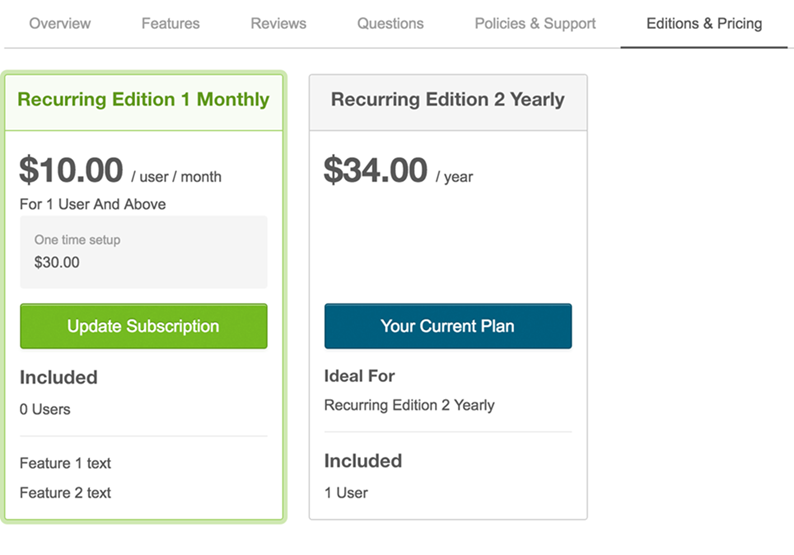
- Click Editions & Pricing. The Editions & Pricing tab displays the currently configured editions as shown in the following image. It includes an edition called Recurring Edition 1 Monthly that is configured with two features (Feature 1 text and Feature 2 text).
- (Optional) Repeat step 1 through step 6 to edit any additional network product editions.
Was this page helpful?
Tell us more…
Help us improve our content. Responses are anonymous.
Thanks
We appreciate your feedback!