Publish products
You must publish products from the Staging Catalog before you can add them to your marketplace and, simultaneously, to the Production Catalog.
This section covers the Publish and Add to Marketplace procedure for workflows 2, 3a, and 3b shown in the following image.
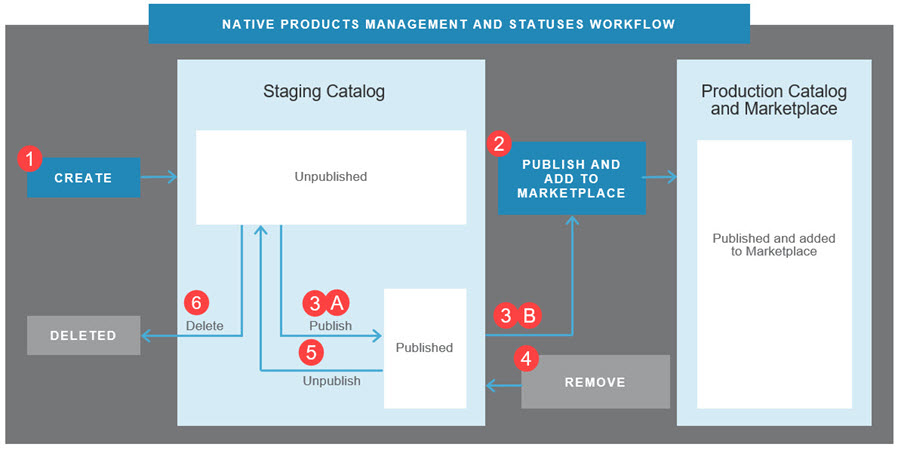
💡 Tip: For an introduction to this image and how Marketplace Managers manage products in the Staging and Production catalogs, see Manage product catalogs.
In the Staging Catalog, products can be unpublished or published. The following workflows can result in Published products in the Staging Catalog:
- Start the Publish and Add to Marketplace process but cancel out of it after the Publish step.
- Remove a product from the Production Catalog and Marketplace (see Remove products). This scenario is the most common.
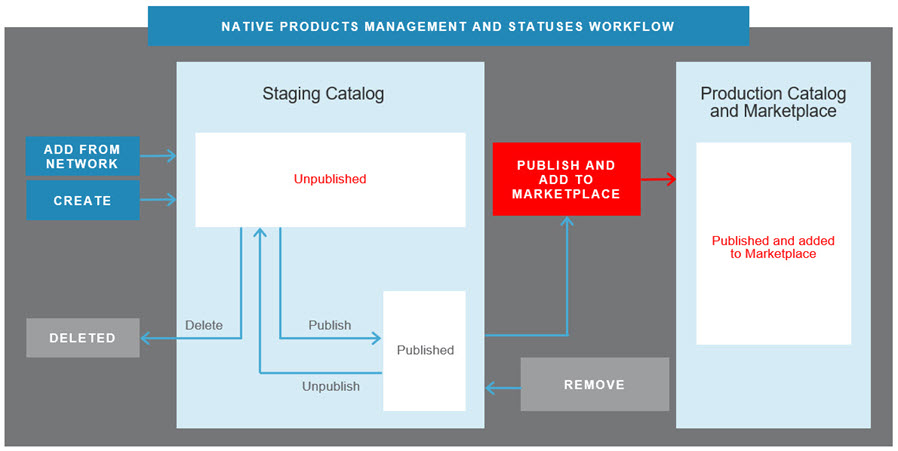
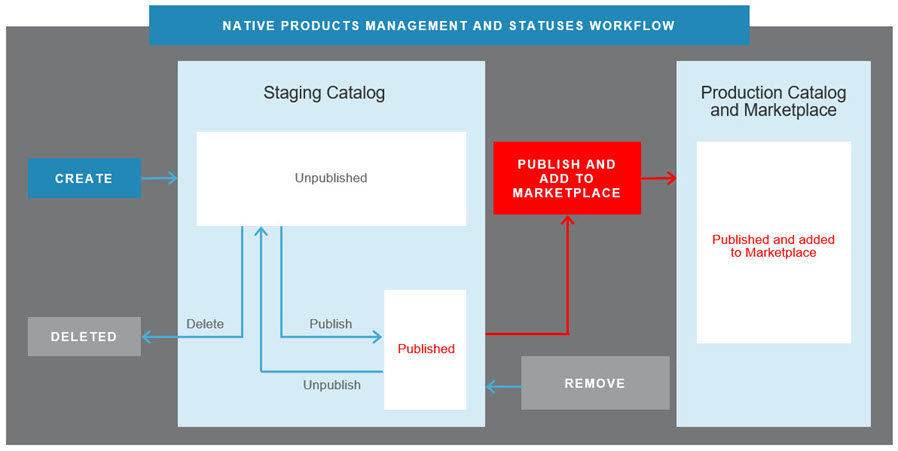
To add either unpublished or published products to a marketplace, you use the same Publish and Add to Marketplace procedure. It publishes unpublished products and re-publishes already-published products, then adds them to the marketplace. Both scenarios are shown in the following images:
- Unpublished product—Publish and Add to Marketplace publishes unpublished products and adds them to the marketplace (and Production Catalog), shown in red.
- Published product—The Publish and Add to Marketplace procedure re-publishes published products and adds them to the marketplace (and Production Catalog), shown in red.
To publish or republish a product and add it to the marketplace
📝 Note: This documentation page may refer to Manage > Marketplace in navigation steps. If the Manage option is not available in your navigation, click the grid icon on the top-left corner of your header and click Marketplace.
- Click Manage > Marketplace > Products > Catalog | Staging Catalog. The Staging Catalog opens.
- Click Edit next to the product you want to publish. The Product Dashboard opens for the selected product.
- Click Publish. The Add Product to the Marketplace dialog opens.
📝 Note: To leave the Published product in the Staging Catalog and not add it to the marketplace, click Cancel, then Cancel. To add it to the marketplace later, complete this procedure without canceling. This publishes the product again and adds it to the marketplace.
- Click Publish & Add to Marketplace. The Product settings page opens.
- Set the display options in this dialog as described in Edit product marketplace settings.
- Click Save. The Production Catalog page opens, a message confirms the product is added to the Production Catalog (and, therefore, the marketplace) and the table displays the product.
Was this page helpful?
Tell us more…
Help us improve our content. Responses are anonymous.
Thanks
We appreciate your feedback!