Add network products to the staging catalog
As a Marketplace Manager, you can select any product from the AppDirect network catalog to sell on your marketplace. In general, you need to browse through the catalog, select relevant products, and publish them to your marketplace.
Prerequisites
- Ensure you have defined Product Groups.
- Understand your catalogs:
- AppDirect network catalog—Lists all third-party products that are available to sell on your marketplace.
- Staging catalog—Holding place for products between the AppDirect network catalog and your live marketplace. Products in the staging catalog can be customized by the Marketplace Manager and are not visible to customers.
- Production catalog—Contains all products that are published to your marketplace and available for purchase by customers.
- Understand the product lifecycle. Products originate in the AppDirect network catalog, are added temporarily to the staging catalog, and are published to the production catalog.
- Be sure you have access to products you wish to add from the network catalog. Products you can add have an Add to Staging button beside them. Other products have a Request to Add button, which means you must come to an arrangement with the Developer before you can add them to your staging catalog. You should make such an arrangement before clicking Request to Add to request formal access to the product.
To add network products to the staging catalog
📝 Note: This documentation page may refer to Manage > Marketplace in navigation steps. If the Manage option is not available in your navigation, click the grid icon on the top-left corner of your header and click Marketplace.
- Click Manage > Marketplace > Products > Catalog | Staging Catalog. The Staging Catalog opens.
- Click Add Network Product. The Add from the Network Catalog page opens.
- Locate the product you want to add to the Staging Catalog. It appears with one of two buttons beside it:
- Click Add to Staging to display the productName Settings page with marketplace settings for the product.
- If the product appears with a Request to Add button, it is configured to require the Developer’s approval. You must click this button and wait for the request to be approved (see Prerequisites). When it is approved, the button changes to Add to Staging and you can proceed with adding it to the Staging Catalog.
- Edit product marketplace settings as appropriate.
- Click Save. The product’s details page opens in Preview Profile mode and editing options in the top pane.
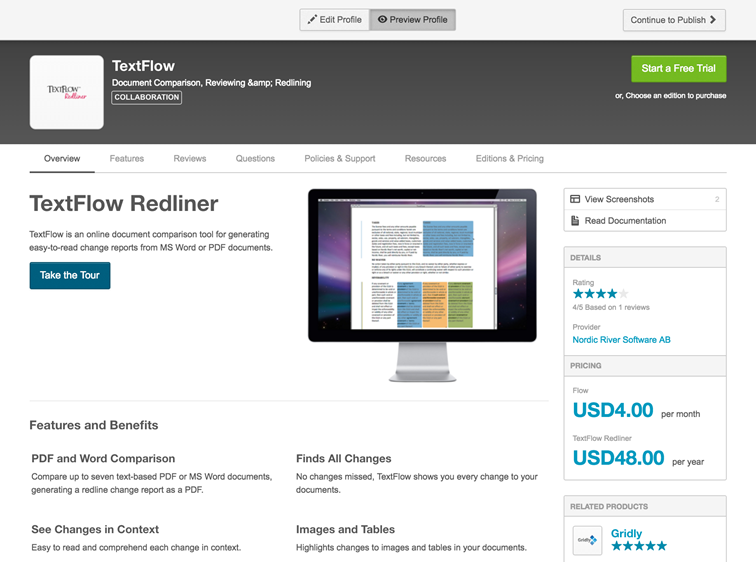
- Click Edit Profile to enter the Edit Mode, then click the area of the profile you want to edit. The top heading is shown in edit mode in the following image.
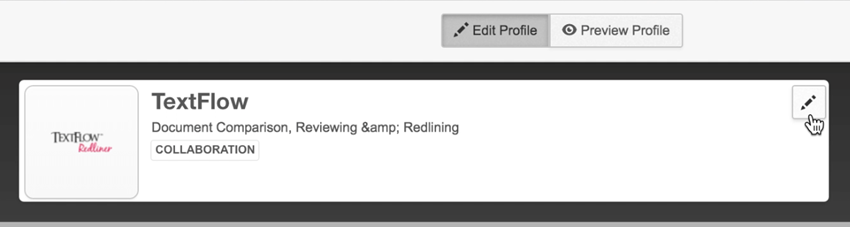
- Click the Pencil icon. The Marketplace Listing page opens.
- Edit one or more fields, then click Save.
- (Optional) Click one or more of the Profile & Branding or Edition & Pricing options in the left pane, and make edits in the appropriate fields on the selected page.
📝 Note: You must click Save before leaving the page or your edits will be lost.
- Click Preview Profile (at the top of all Profile & Branding pages) to display the updated product’s profile .
- (Optional) Repeat step 6 through step 8 to make additional edits.
- Click Publish (at the top of all Profile & Branding pages) or Continue to Publish from the preview page to republish the updated product profile.
Was this page helpful?
Tell us more…
Help us improve our content. Responses are anonymous.
Thanks
We appreciate your feedback!