Apply Microsoft promotions from the Sync Tool
When a Microsoft subscription has promotional pricing in Partner Center but not on the marketplace, the Microsoft Sync Tool surfaces the gap as PROMOTION_NOT_ON_MARKETPLACE. Marketplace Managers can review the mismatch and apply the missing promotion from the Sync Tool—individually or in bulk—without soft-cancelling or remigrating the subscription.
This workflow corrects reconciliation gaps where the customer received the Microsoft promotion in Partner Center but the marketplace subscription still uses standard pricing. Soft cancel and remigration do not resolve this discrepancy; remigrated subscriptions are created at the standard product profile price and the promotion gap returns.
For how promotions are applied automatically during purchase, update, and renewal flows, see Applying promotions for Microsoft NCE subscriptions.
Prerequisites
- Microsoft Sync Subscription must be enabled under Manage > Marketplace > Settings | Sync Settings.
- Enable apply dynamic promotion should be enabled for the marketplace if promotional pricing is used broadly. See Applying promotions for Microsoft NCE subscriptions.
Identify promotion discrepancies
Promotion gaps appear in the Sync Tool and in the Microsoft Discrepancy Report.
In the Sync Tool
- Go to Manage > Marketplace | Admin Tasks > Microsoft to open Sync Subscriptions.
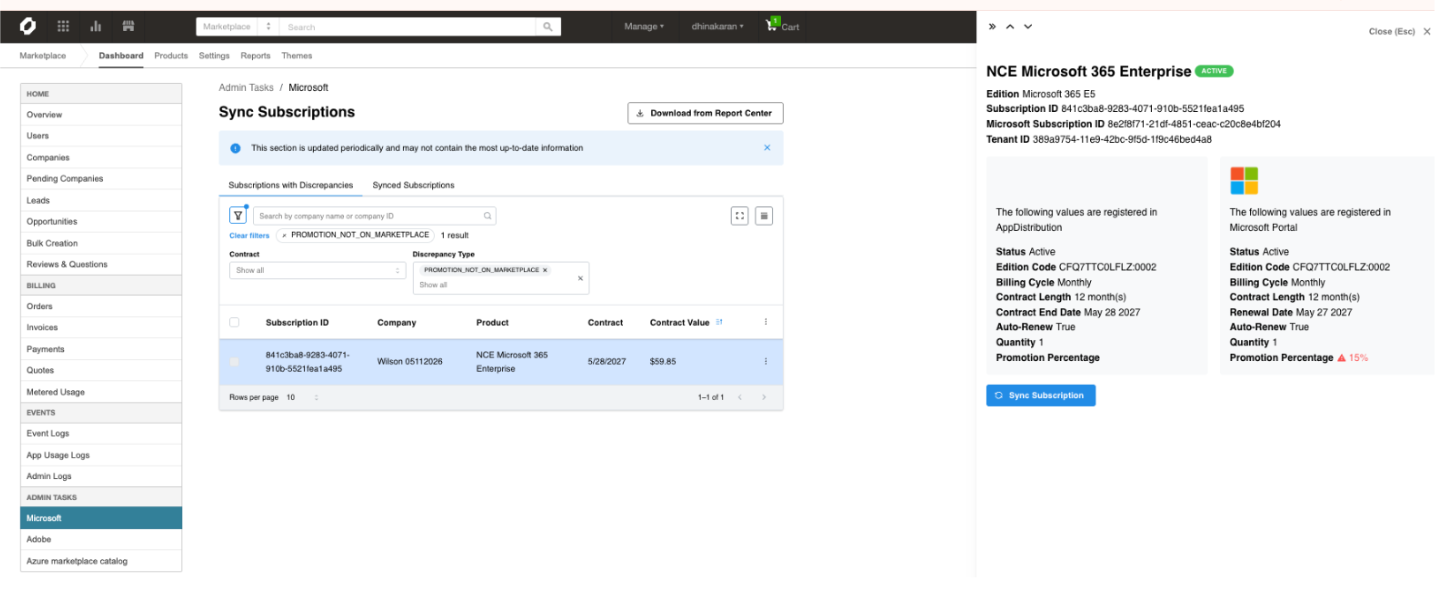
- On the Subscriptions with Discrepancies tab, open the Discrepancy type filter and select PROMOTION_NOT_ON_MARKETPLACE.
- Select a subscription to compare Partner Center and marketplace values in the detail panel.
In the Microsoft Discrepancy Report
- On Sync Subscriptions, click Download from Report Center.
- Create a report with type Microsoft Discrepancy Report.
- Review rows with discrepancy type PROMOTION_NOT_ON_MARKETPLACE.
Apply a promotion (individual)
- On Subscriptions with Discrepancies, filter by PROMOTION_NOT_ON_MARKETPLACE and select a subscription.
- Click Sync Subscription.
- Review the confirmation step. Any existing discounts on the subscription are shown so workaround overlap can be checked before proceeding.
- Type CONFIRM and click Accept to apply promotional pricing to the marketplace subscription.
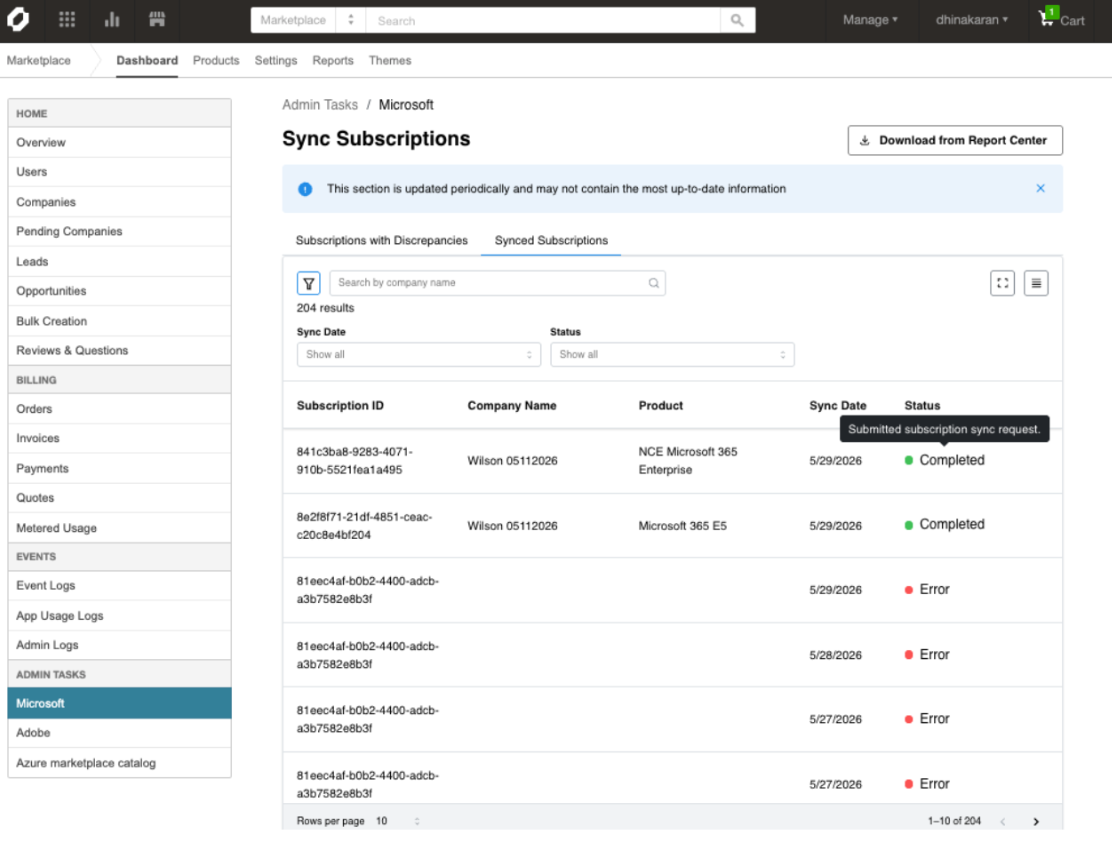
📝 Note: Some subscriptions may have manual discounts added as a workaround for promotional pricing—for example, where the partner chose not to enable the Promo feature, set promotional discount passthrough below 100%, or applied a discount to approximate the promotional price. Applying the Microsoft promotion on top of an existing workaround discount results in double-discounting. Review existing discounts before confirming.
Apply promotions (bulk)
Promotions can be applied to multiple subscriptions in one bulk action.
- On Subscriptions with Discrepancies, filter by PROMOTION_NOT_ON_MARKETPLACE.
- Select the subscriptions to correct.
- Run the bulk apply action.
- Review per-subscription success and failure results.
Before bulk apply, review the selected subscriptions and exclude any with existing workaround discounts. Subscriptions included in bulk apply receive both the existing discount and the new promotion if not excluded.
Billing and reconciliation
Applying a promotion updates the marketplace subscription promo flag and pricing to align with Partner Center. The Sync Tool does not generate invoices, credits, or mid-month pro-ration adjustments. If the price change affects billing for the current cycle, handle credits or charges through standard billing processes.
Full Microsoft promotion metadata (such as promo ID, original discount percentage, and Microsoft cost price) remains on the subscription record for reconciliation and Sync Tool reporting.
Promotional discount passthrough
The Sync Tool compares Microsoft cost prices and promotion metadata between Partner Center and the marketplace. It does not compare customer sell prices.
When promotional discount passthrough is configured below 100%, the customer-facing price may be higher than the full Microsoft promotional discount would suggest. That difference is expected partner margin and does not create a false PROMOTION_NOT_ON_MARKETPLACE discrepancy.
Applying a promotion from the Sync Tool aligns the marketplace subscription with Partner Center promotional pricing and metadata. The customer price still reflects your configured passthrough percentage. For marketplace and edition passthrough settings, see Configure promotional discount passthrough in Applying promotions for Microsoft NCE subscriptions.
Related topics
Was this page helpful?
Tell us more…
Help us improve our content. Responses are anonymous.
Thanks
We appreciate your feedback!