Sync Microsoft subscription end dates from order detail
Correct marketplace end and contract dates for a single Microsoft New Commerce Experience (NCE) subscription while you are on order detail. The action applies Microsoft’s commitment end date when validations pass. It does not change seat quantity, SKU, billing term, or billing frequency.
Choose the right remediation path
| Goal | Use |
|---|---|
| Fix end or contract dates for one subscription you are already viewing on order detail | Sync end dates (this topic) |
| Review discrepancies, sync quantity, auto-renew, contract end date, promotions, or many subscriptions | Microsoft Sync UI |
| Align contract term end dates automatically on supported purchase and lifecycle events | Microsoft NCE subscription contract term end date sync on Sync Settings |
If marketplace and Partner Center contract dates differ by more than the expected relationship between renewal date and contract end date, see Why is there a discrepancy in the Contract End Date between Microsoft and AppDirect? in the Sync UI FAQs before you sync.
Eligibility and access
Sync end dates is available when all of the following apply:
- Who: Marketplace Manager, or Customer Support with the Sync Subscription with Microsoft role permission.
- Subscription: Active Microsoft NCE subscription with a resolvable MOSI subscription ID.
- Integration: Microsoft reseller integration is configured on the marketplace.
- Renewal timing: Subscription is not renewing within the next 3 days (the action is hidden near renewal to reduce billing risk).
The button can appear even when dates already match; the page shows whether a sync ran or was unnecessary after you confirm.
Grant Customer Support access
- Go to Manage > Marketplace > Settings > Settings | Roles. The Role Permissions page opens.
- In the Customer Support role section, enable Sync Subscription with Microsoft.
Sync end dates from order detail
📝 Note: This documentation page may refer to Manage > Marketplace in navigation steps. If the Manage option is not available in your navigation, click the grid icon on the top-left corner of your header and click Marketplace.
- Open the order detail page for the Microsoft NCE subscription. See View order details.
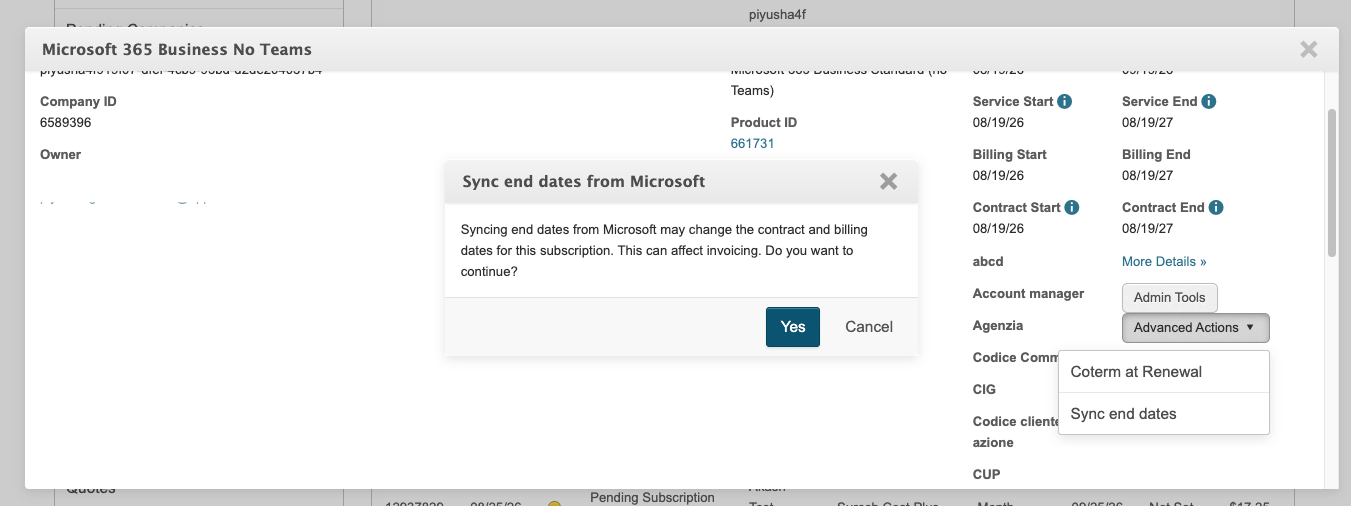
- Click Sync end dates. A confirmation dialog appears.
- Review billing impact, then confirm. Syncing end dates may affect invoicing.
Results and errors
After you confirm, the order detail page reports whether dates were updated, already matched Microsoft, or could not be synced. The most common blocking case is multiple active orders on the same subscription—the action cannot run until only one active order applies.
For the full list of outcome messages and examples, see When is the sync action available in the Release 752 release note.
Related topics
Was this page helpful?
Tell us more…
Help us improve our content. Responses are anonymous.
Thanks
We appreciate your feedback!