Hide pricing plans
You can hide the pricing plans or individual plan items from the storefront and administrative views without deleting the underlying data. This helps in "sunsetting" old plans while maintaining support for existing customers.
The hidden plans are completely removed from the public storefront and are not selectable for new opportunities by Agents or Marketplace Managers. However, the subscriptions currently on a hidden plan will continue to renew on that plan automatically (subject to your auto-renew settings).
If a customer on a hidden plan enters the "Update" flow, their current hidden plan remains visible so they can see what they are currently paying for. However, once they switch to a different plan, the hidden plan will no longer be available to them.
📝 Note: The hide option is only available for editions that have more than one price plan. Also, to ensure your marketplace always has a checkout option, you cannot hide the last remaining active pricing plan. However, you can also hide the edition from the storefront by checking the This edition is hidden from marketplace customers option in the EDITION INFORMATIONS section.
To hide a pricing plan
-
Click Manage > Marketplace > Products > CATALOG | Production Catalog. The Production Catalog opens.
-
Click the gear icon next to the product whose edition you want to edit, then select Edit Product. The Product Dashboard opens for the selected product.
-
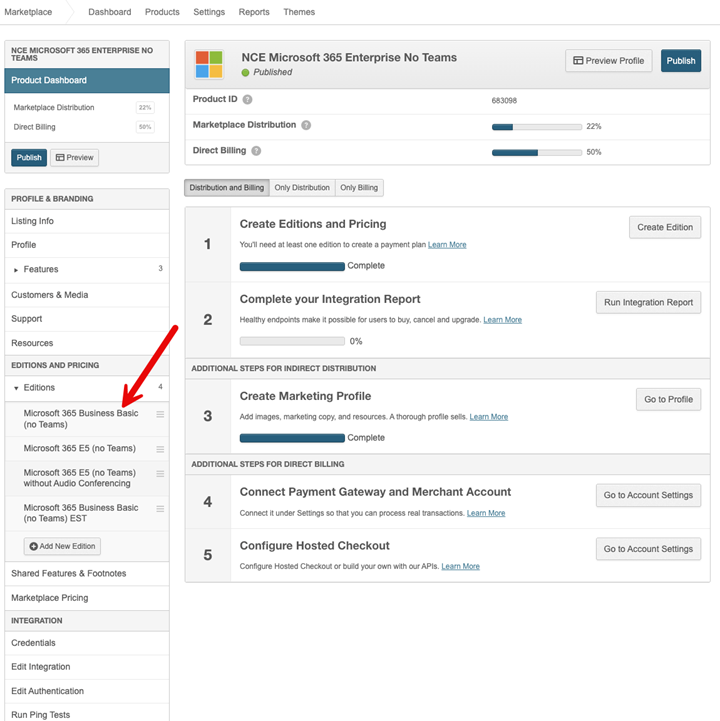
Click EDITIONS AND PRICING > Editions. The list expands to show each existing edition (four in the following example).
-
Click the edition you want to edit. The Manage Pricing Edition page opens for the selected edition.
-
Scroll down to the PAYMENT PLANS section.
-
Check the Hide pricing plan check box. The pricing plan is completely removed from the public storefront and is not selectable for new opportunities by Agents or Marketplace Managers.
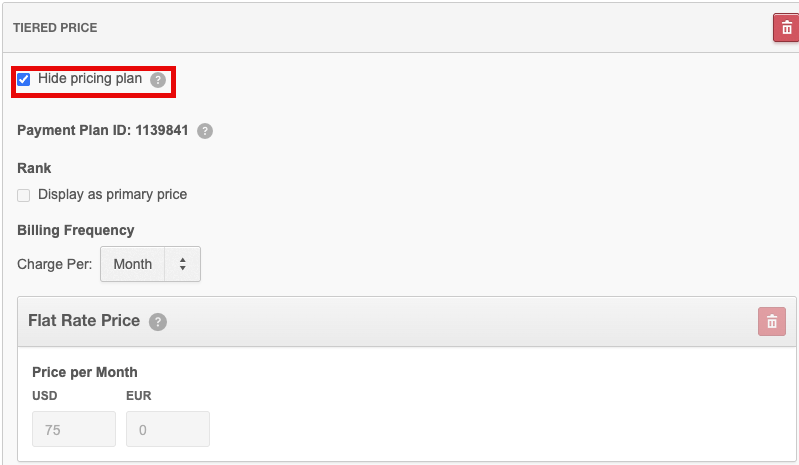
📝 Note: You can also delete a plan by clicking the bin icon. However, if you attempt to delete a plan in use, a warning dialog appears explaining that the plan is linked to a subscription. The UI suggests hiding the plan as an alternative. You can click Hide Plan in the warning dialog box to hide the plan.
📝 Note: To ensure your marketplace always has a checkout option, you cannot hide the last remaining active pricing plan. In this scenario, the "Hide pricing plan" checkbox will be disabled.
-
Click one of the following:
- Save Plan to save your edits and remain on the Product Dashboard.
- Save and Preview to save your edits and display the Editions & Pricing tab of the product's profile. You can perform additional edits from the profile page by clicking Edit Profile and using the page's graphical interface.
Was this page helpful?
Tell us more…
Help us improve our content. Responses are anonymous.
Thanks
We appreciate your feedback!