Review results through activity logs
The Activity Log displays various details of Product Uploader events and their real-time progress. It shows records of events for the past seven days.
The Activity Log allows you to:
- View the list of successfully created products
- Check for any partial failures
- Download a report of the operation
To view the Activity log, go to Manage > Marketplace > Products > CATALOG| Product Uploader > click Activity Log tab.
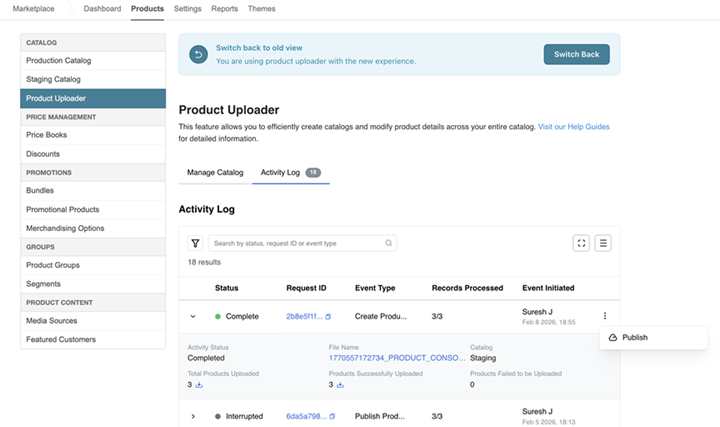
The following table summarizes the different columns in the Activity log and what kind of information you can see in each of the columns:
| Column | Description |
|---|---|
| Status | Indicates the status of an event in Product Uploader:
|
| Request ID | Displays the request id that is generated for the activity. |
| Event Type | Displays the process being performed such as download,upload, unpublish or delete along with the dataset that is being downloaded or uploaded. Examples include Download - Product Basics, Unpublish, and Delete. |
| Records Processed | The progress of the activity. It displays the number of rows of products processed and the total number of products to be processed. Example - 58/2735. |
| Event Initiated | Displays the name of the marketplace user who started the activity and the date it was initiated. |
You can expand each activity to see the following details:
- Activity Status - The status of the product uploader activity.
- File Name - Name of the file being uploaded or downloaded.
- Total Products Uploaded/Downloaded - Total number of products listed in the file being uploaded or downloaded.
- Products Successfully Uploaded/Downloaded - The number of products successfully uploaded or downloaded.
- Products Failed to be Uploaded/Downloaded - The number of products that failed to be uploaded or downloaded due to errors.
Publish catalog: To publish a catalog, click  in the corresponding event row and then clcik on Publish. The Configuration and Settings step of the workflow opens. Update the necessary settings and click Publish and Continue. For more information on setting options, see Create products in bulk.
📝 Note: The Publish option is available only for Create Catalog events. Publish and View Catalog are not shown for Unpublish or Delete request types.
Filter and search the activity log table: Find specific operations by date, type, or status by enetring teh value in teh search bar, or click the filter icon and select the required options. The activity log table will display the rows based on the filter criteria.
Toggle full screen option: Click  to make the table full screen and click
  to come back to normal screen.
Toggle density: Click  to toggle the density of the rows displayed in the table.
Was this page helpful?
Tell us more…
Help us improve our content. Responses are anonymous.
Thanks
We appreciate your feedback!