Update catalog in bulk
As a Marketplace Manager, you can bulk-update existing products in the Staging Catalog (and publish changes to the Production catalog when you choose) using Product Uploader. Use a CSV file to change product data that is already in your catalogs. The file you upload must identify existing products correctly so the platform can apply your updates to the right records.
Common requirements for catalog updates:
- Product identifier (SKU or unique ID) that matches products already in the catalog.
- Columns that align with the update template or exported file for your product type.
- Valid reference data (for example, categories, price books, or integrations) where the template requires it.
📝 Note: Required fields and allowed values vary by product type and by the section you are updating. Always download the latest template or current catalog export before you prepare your file so the structure matches what the uploader expects, including any localized columns for your marketplace locales.
Localized catalog content
When your marketplace has additional locales configured, Download and Update workflows include localized field columns for supported entities. You can maintain translated catalog content through CSV and ZIP files using the same field coverage and locale rules as the catalog UI.
- Download Catalog templates and exports include localized field columns and values for supported locales and fields.
- Update accepts locale-specific columns and applies changes per locale rules for supported branding, images, media and resources, edition, and integration sections.
- CSV column headers remain in En-US. Provide localized content values using the column and locale conventions documented in the templates.
- En-US values are mandatory for product details.
- Pricing attributes are not localized. Update Prices and related price workflows do not use locale-specific pricing columns.
- Row-level upload errors identify the column, row, locale, and rule violated.
Bulk update workflows in the new experience
The following workflows can now be updated in bulk through the new guided Product Uploader experience:
- Update Prices: You can update Wholesale Prices, Vendor List Prices, Marketplace Sale Prices, and Price Books in bulk. Pricing attributes are not localized.
- Update Marketplace Settings: You can update General Settings and Billing Settings in bulk. You can filter downloads and updates by Custom Integration so that only products tied to a selected integration are included.
- Update Taxonomy: You can update Category & Sub-Category, Product Lines, and Product Attributes in bulk.
- Update Edition Details: You can update Pricing Plans in bulk. Localized edition content follows the locale columns in the template when additional locales are configured.
- Update Product Branding: You can update Product Basics, Features & Benefits, Product Custom Attributes, Resources & Media, and Feature Characteristics in bulk, including localized field values when additional locales are configured.
- Update Product Images: You can download and upload product images in bulk via ZIP under Update Catalog > Product Profile and Branding, including locale-specific image content where supported.
- Update Product Media and Resources: You can download and upload product media and resources in bulk via ZIP under Update Catalog > Product Profile and Branding, including localized values where supported.
- Download Catalog: You can download catalog data in bulk using the updated experience, with filter options such as Product Type, Vendor UUID/ID, and Product Reference ID (and related controls shown in the UI). Downloads include localized values for supported entities when additional locales are configured. A Full Catalog Download ZIP also includes a Product Custom Attributes CSV.
- Update Product Integrations: You can update Product Integrations and Product Integration Credentials in bulk, including localized values where supported.
Full Catalog Download and product custom attributes
When you download the full catalog, the consolidated ZIP export includes a Product Custom Attributes CSV alongside the existing catalog files (for example, product basics, editions, pricing, benefits, features, media, and markup prices).
- The Product Custom Attributes file includes product identifiers, attribute keys, and attribute values for all populated locales. The En-US base locale is always present when values exist.
- Products with no custom attributes do not add empty or malformed rows.
- The file format matches the existing Product Custom Attributes entity used elsewhere in Product Uploader, so you can use the export as a migration-ready reference when replicating catalogs across marketplaces.
- Use Update Product Branding > Product Custom Attributes to bulk-update attribute values. Creating or updating product custom attributes through the Full Catalog upload or Create Entire Catalog flow is not supported in this release.
Filter products for download and update
You can narrow down the products included in a download or update using the filters on the Configure template step.
Product Reference ID filter
Use the Product Reference ID filter to target specific products for bulk downloads and updates. This filter is available in both Download Catalog and Update Catalog workflows.
- Search for specific products using Product Reference IDs.
- Add up to 500 IDs by pasting them into the field or uploading a CSV file with a column named Product Reference ID.
- Apply the filter to specific sections such as wholesale prices, branding, integrations, and settings.
- Download or update either a single section or the full catalog for only the selected products.
Custom Integration filter for Marketplace Settings
For Update Marketplace Settings (download and update), use the Custom Integration filter to scope the operation to products tied to a selected integration (for example, a vendor-specific integration such as Microsoft or MOSI).
- On download, selecting a custom integration limits the export to matching products only. Leaving the filter cleared preserves the previous behavior and returns all products.
- The exported Marketplace Settings CSV includes a Custom Integration column so you can distinguish vendor-specific products in the file.
- On update, changes apply only to products that match the selected custom integration. Rows outside the filtered scope produce row-level validation errors instead of silent updates. Use the error report to correct or remove out-of-scope rows and re-upload.
Advanced filters
Depending on the workflow and section selected, additional filters are available under Advanced Filters, such as:
- Custom Integration
- Edition Code (SKU)
- Creation Date
- Last Modified Date
- Product Type
- Vendor Name or ID
To update the catalog in bulk
-
Log in to your AppDirect marketplace.
-
Navigate to Products > CATALOG | Product uploader.
-
The new Product Uploader page opens by default for enabled marketplaces. If you are in the legacy experience, click Try New Experience.
-
On the Product Uploader home page, click the tile for the required workflow (for example, Update Prices, Update Marketplace Settings, and such).
The Configure template step for the selected workflow opens. -
Complete the following steps:
Download and prepare your file
- On the Configure template step, expand the list of the section you want to update and select the required section.
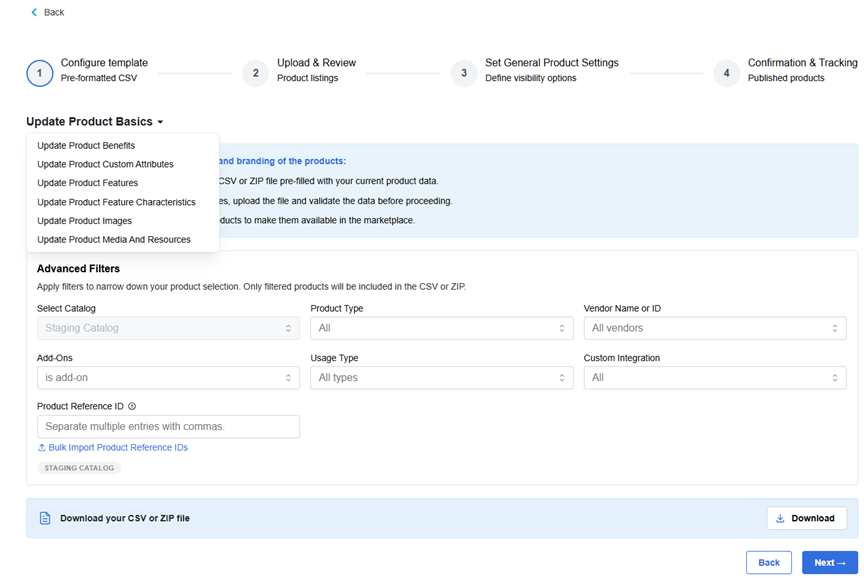
- The page shows Advanced filters based on the section selected. Set the required filters to narrow down the product selection. To target specific products, use the Product Reference ID filter to paste up to 500 IDs or upload a CSV file with a Product Reference ID column.
- Click Download to save the filtered CSV or ZIP file, a new entry is created in the Activity Log indicating the progress of the download.
📝 Note: The file format is downloaded based on the workflow and section selected for download.
- To download your CSV file, click Go to Activity Log (you can also copy the Request ID of the download to search the activity in the Activity Log).
- The Activity Log page opens, expand the required activity row. The expanded section displays the total number of products that are in the file, number of products successfully downloaded and the number of products failed to be downloaded.
- Click the download icon for Products Successfully Downloaded. This file contains the information about the successfully downloaded products. 📝 Note: If there are any errors in downloading, you can view the error file by clicking the download icon for Products Failed to Be Downloaded.For details on the Activity Log, see Review results through activity logs.
- Open the downloaded file, make the required updates.
- Navigate to the Configure template step.
- Click Next to go to the upload step.
Upload your file and validate data
- Click Upload File.
- Add your file by dragging it into the upload area, or click Upload File and browse to the CSV or ZIP file you prepared.
- The details of the uploaded file displays in a table format, you can select to display and review All prodcuts, or the Ready to upload products, or the products with errors.
📝 Note: The system automatically validates your file. Validation includes:
- Data types: Ensures correct data types (numbers, dates, and so on)
- Required fields: Checks mandatory fields, missing values, and datatype errors
- References: Verifies that referenced records exist where the template requires valid references
- Localized content: When locale columns are present, row-level errors identify the column, row, locale, and rule violated
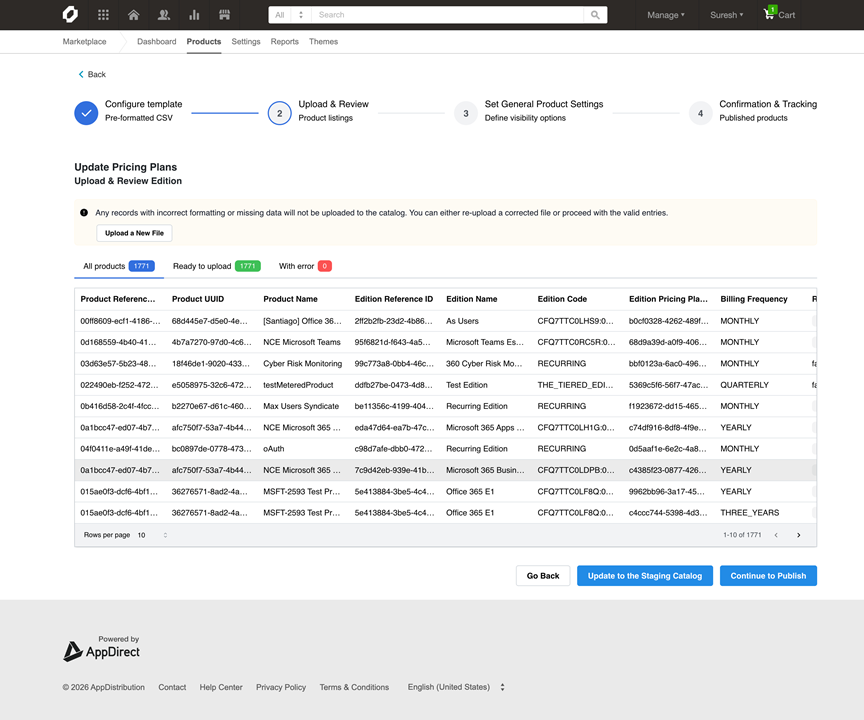
- Review any errors or warnings displayed.
- Fix issues and click Upload a New File to re-upload the corrected file if necessary.
- You can also download the error report for failed rows, to do so click Download report use it to correct the file and upload again.
Publish your catalog changes
- After you verify your data, choose whether changes should apply to the Staging catalog only or needs to be published to production. In the Upload & Review step, select one of the following:
-
Update to the Staging Catalog — Choose this option if updates should be applied only to the Staging catalog.
- The Set General Product Settings page opens.
- Click Go to Activity Log.
- A new entry is created in the Activity Log indicating the progress.
- To view the files uploaded, in the Activity Log click the arrow to expand the required activity row. Click the download icon to download any of the following options:
- Total Products Uploaded- This is the original file uploaded.
- Products Successfully Uploaded - This file contains the information about the successfully processed products. It also contains the post processed information such as product IDs that are generated when a product is successfully uploaded.
- Products failed to be uploaded- This file contains the information about all the products uploaded along with the products that were not uploaded due to errors. You can fix the errors and re-upload the file.
-
Continue to Publish — Choose this option if updates should be published to the Production catalog.
- A confirmation dialog box appears.
- Click Confirm to upload the successful enteries.
- Click Cancel to go back if required.
- (Optional) you can also click Download report to download the errors file. You can then chose to correct it and re-upload.
- If you clcik Confirm, the Set General Product Settings step opens with the default settings that will be applied to all products in the batch.
- You have the following two options:
- Keep existing settings — Choose this option to proceed while retaining publish-related settings that already apply to products in the Production catalog.
- Publish and Continue — Choose this option to configure settings and publish the batch. This overwrites publish settings for all products in the batch. Use this option carefully when the batch includes products that are already in the Production catalog. Configure the following settings as required:
-
In the PRODUCT VISIBILITY section define the network and marketplace visibility for the product:
-
The availability settings, Visible on network and Visible on marketplace, work in combination with each other. Key terms are defined as follows:
- Network - Marketplaces in a hierarchy, including a parent marketplace (also known as base marketplace) and one or more child marketplace.
- Visibility - Whether or not the product is visible to customers on the marketplace. When it is, they can purchase the product themselves.
The configuration combinations and outcomes for product visibility appear in the following table. However, regardless of the visibility configuration, Reseller Managers, Resellers, and Sales Support Representatives (SSRs) can always see products within the assisted sales flow and when they Purchase products on behalf of users, even when customers cannot see it.
Visible on Network Visible on Marketplace Product visibility Selected Selected The product is visible to customers on all marketplaces. This is the default configuration. Selected Cleared The product is visible to customers on the base marketplace but hidden by default on all child marketplaces. Marketplace Managers can configure the product to be visible or invisible on each child marketplace. Also, when Visible on Network is selected but Visible on Marketplace is not selected then, the word Invisible appears next to the product for Reseller Managers, Resellers, and SSRs using the assisted sales flow. This identifies it as a product that is not visible to customers on the marketplace. Cleared Cleared The product is hidden from customers on the base marketplace and all child marketplaces. 📝 Note: Clearing Visible on Network automatically disables Visible on Marketplace.
-
- Select Show as "Coming Soon" on marketplace to promote a new product you intend to add to your marketplace.
- Select Hide all pricing on the marketplace including the pricing tab in product profiles if you want to hide the pricing tab from customers.
-
-
In the PURCHASES section define whether you want the product to be visible to Resellers.
- Select Resellers can start new purchases to define if the product must be visible to Resellers. Unselect this option to prevent Resellers from selling the product. This setting also:
- Allows Reseller Managers to add the product to reseller catalogs.
- Makes the product available to resellers who can sell products. When the product is available, Resellers can start a checkout purchase or create an opportunity with a product.
- The following are not affected by this setting:
- Reseller Managers and Marketplace Managers can add products to reseller opportunities.
- Resellers can submit and finalize opportunities containing a product.
- Resellers can make subscription updates for the product.
- (Optional) Select End users purchase with Checkout V2. This option is only available if Checkout V2 is enabled by AppDirect for your marketplace, but a Marketplace Manager has disabled it for all purchases. If you enable this setting, all customers who purchase this product on your marketplace go through the Checkout V2 flow. See Configure checkout settings for more information.
- Select Resellers can start new purchases to define if the product must be visible to Resellers. Unselect this option to prevent Resellers from selling the product. This setting also:
-
In the LEADS section define how to collect or assign leads.
- Select Collect Leads to have this product's profile page display a Contact Us button. Potential customers click this button to submit contact information that your sales agent can use to contact the customer.
- Select Assign collected leads to Developers to automatically assign leads that users submit from the product profile to the product's Developers, and Resellers that belong to the same company. Note that to enable this setting, you must select the Collect Leads setting, too.
-
In the SORTING section, assign a sorting rank (Very High, High, Medium, Low, or Very Low) to the product from the drop-down list. Products with a higher ranking appear closer to the top of the home page, search results, and in the Featured Apps slider.
If more than one product has the same sorting rank, the platform uses the following logic to automatically sort them:- On the home page - The home page displays the product in the same order as the configuration sequence. For example, Product A and Product B have the same sort rank. You configured Product A’s sorting rank, and then configured Product B’s sorting rank. Product A appears in the Featured Applications and All Applications pages first, then Product B follows.
- In the search results - Search results display the product that most closely matches the search string entered by the customer. For example, two products (Product A and Product B) have the same sort rank. You configured Product A’s sorting rank, and then configured Product B’s sorting rank. If the customer enters A in the search field, Product A appears first in the search results. If the customer enters Product in the search field, Product A appears first, then Product B follows.
-
Click Publish and Continue.
-
- On the Configure template step, expand the list of the section you want to update and select the required section.
-
When the workflow completes, note the request ID. Click Go to Activity Log or open Activity log from the home page to monitor progress, confirm success, or review partial failures. If the UI offers an error report download for the batch, use it to fix remaining rows and run the workflow again if needed.
Was this page helpful?
Tell us more…
Help us improve our content. Responses are anonymous.
Thanks
We appreciate your feedback!