Create migration datasets
note
Before migrating datasets to your marketplace, contact your AppDirect technical representative.
Complete the following procedure to import externally created records of various types into your marketplace. The procedure for migrating Google Account datasets is slightly different, see Create and upload a migration dataset for Google accounts.
To create a migration dataset
📝 Note: This documentation page may refer to Manage > Marketplace in navigation steps. If the Manage option is not available in your navigation, click the grid icon on the top-left corner of your header and click Marketplace.
- Go to Marketplace > Settings > Integration | Migration > Create Dataset. The Data Migration page opens.
- Enter a name for the dataset in the Batch Name field, for example, MigrationPhase1_July2015. This name appears in the table on the Data Migration page after the upload is complete.
- (Optional) Click Download to download a sample dataset you can use as a template for preparing your import files.
- Click Choose File next to the data type that you want to import, navigate to the CSV file, then click Open. The file name and path appear in the corresponding field. Repeat for other data types that you want to include in the dataset.
- Click Upload Dataset. When the upload is complete, the Data Migration page opens and displays a message stating that the batch was successfully created and sent for validation. The validation is performed automatically, and depending on size of the dataset, can take more than an hour.
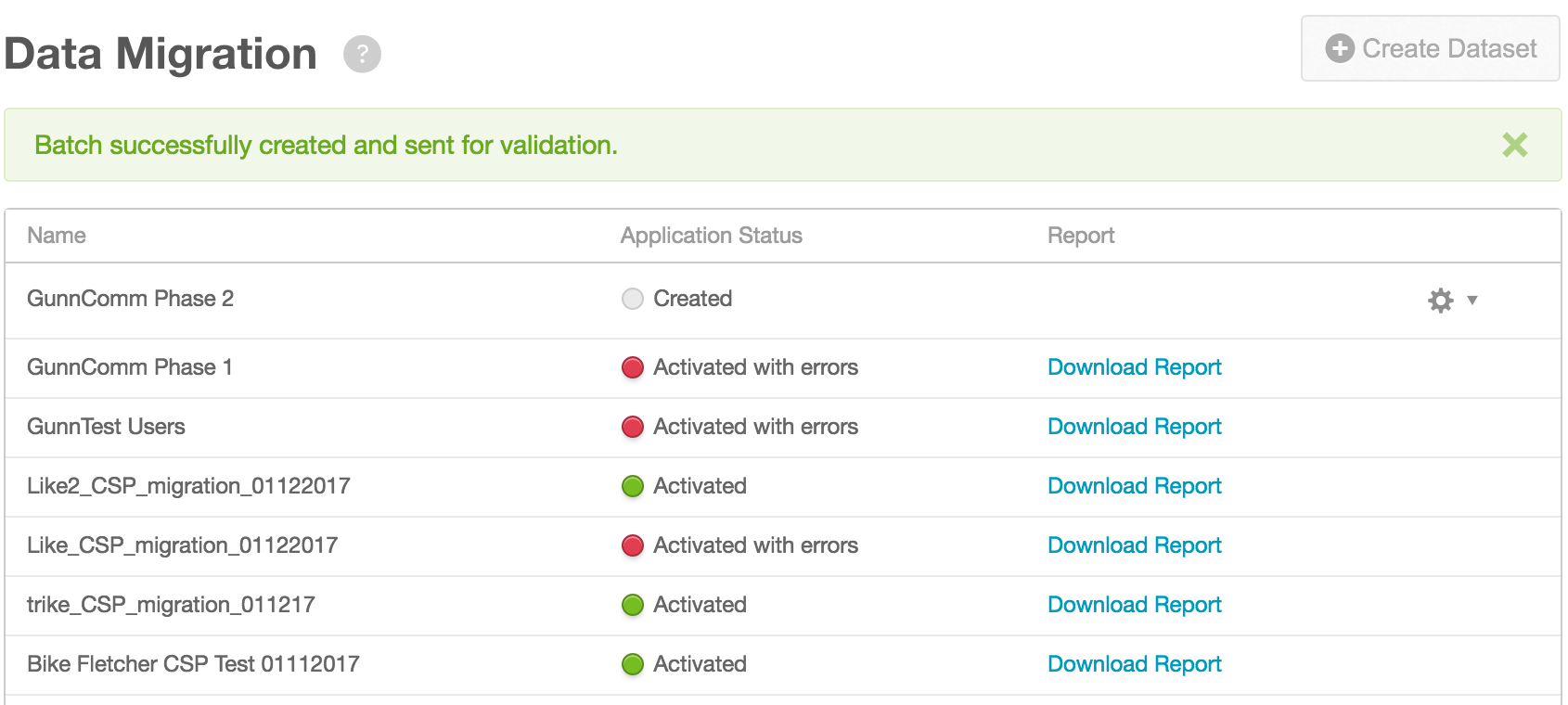 Note the following on the Data Migration page:
- The newly imported file’s Application Status column displays the state as Created. Other states are Activated, Activated with Errors, and Upload Failed (not shown).
- The gear icon list includes options to Edit Dataset and Delete Dataset.
- While a batch file is being validated, you cannot create another dataset.
- When the state changes from Created to any Activated state, you can click Download Report in the Report column to download a copy of the import report as described in Download migration reports.
Was this page helpful?
Tell us more…
Help us improve our content. Responses are anonymous.
Thanks
We appreciate your feedback!