View invoice details
📝 Note: This documentation page may refer to Manage > Marketplace in navigation steps. If the Manage option is not available in your navigation, click the grid icon on the top-left corner of your header and click Marketplace.
The presentation of invoice details at Manage > Marketplace > BILLING| Invoices > invoice number differs depending on whether the enhanced invoice feature is enabled. To determine whether the enhanced invoice feature is enabled, see Invoices. Following are descriptions of each view.
Some of the features and options referenced in this topic might not appear, depending on marketplace, role, and company configuration.
View invoice details when the enhanced invoice view is enabled
Invoices appear at a consistent, unique URL that you can copy to share with other administrators. This view displays an invoice summary, the invoice, and payment history for the invoice.
Invoices might not display all invoice lines. Marketplace Managers can configure invoices to hide zero-amount invoice lines (see Configure invoice headers and content) for products for which customers are restricted from making subscription changes and cancellations (see the Billing tab in Edit product marketplace settings for more information about restricted editions). Instead, they need to contact sales agents. It is sometimes advantageous for sales agents that customers cannot see zero-amount products, when sales agents price subscription renewals for them.
When the unified invoice experience is enabled for your marketplace, charges and related credit adjustments appear together on a single invoice in the UI and PDF. This experience requires billing pipeline V2 and is in Early Availability. Contact your AppDirect technical representative to request it. For more information, see View invoice details and Credit memos.
For each invoice, the following information is available:
- Download—Download a PDF version of the invoice (identical to the payee view), when Invoice builder is enabled. For more information, see Invoice templates.
- Customer view—Go to the payee's view of this invoice.
The following details appear in the invoice summary:
- Invoice number—Unique system-assigned invoice ID.
- Invoice status
- Paid—Amount owing is equal to or less than zero.
- Unpaid—Amount owing is greater than zero.
- Carried—Credit balance is carried to the next invoice.
- Void—No payments will be processed. For Marketplace Managers to void invoices, they must be unpaid and not carried. For more information, see Void invoices.
- Pending—Payment processing is in progress.
- User—Customer name. Marketplace Managers can click on the customer name to view the user’s details page.
- Company—Name of the company to which the customer belongs. Marketplace Managers can click on the company name to view the company’s details page.
- Invoice date—Date that the invoice was created.
- Due date—Date by which the invoice must be paid before it becomes overdue or enters a grace period before it becomes overdue.
- Invoice number—Unique system-assigned invoice identifier.
Invoice lines are grouped by billing period and then subscription. The invoice body displays the following information:
- Description column
- Billing period.
- Product name.
- Plan (edition) name.
- Subscription ID—Unique system-assigned subscription identifier (the UUID).
- Invoice line descriptions—Identify each charge. Examples, depending on invoice scenario, include:
- Charge type—For example: per {unit} price, per {unit} fee, metered usage, discount, credit, termination fee.
- Unit type—For example: user, gigabyte.
- Billing frequency—For example: one time, annual, monthly.
- The other invoice line columns include:
- Unit price—Cost per unit.
- Quantity—Number purchased.
- Total—Charge for the invoice line (unit price multiplied by quantity).
- Effective unit price, effective quantity change, and invoice line type—When the unified invoice experience is enabled.
- Subtotal—Total invoice amount before tax.
- Tax—Total tax amount.
- Carried balance—Total credit balance delegated from a previous invoice.
- Total—Sum of all invoice charges less discounts, credits, and negative carried balances.
- Amount due—Total amount payable.
The payment history section displays a row for each payment attempt, with the following information:
- Payment ID—Unique system-assigned payment identifier.
- Date—Payment date.
- Payment Method—Credit card or ACH (Automated Clearing House transaction).
- Amount—Transaction value.
- Status
- Pending—Payment is in progress.
- Successful—Payment succeeded.
- Failed—Payment unsuccessful.
View invoice details when the enhanced invoice view is disabled
The following image shows a paid invoice for the purchase of the Billing edition of the AppMarket product.
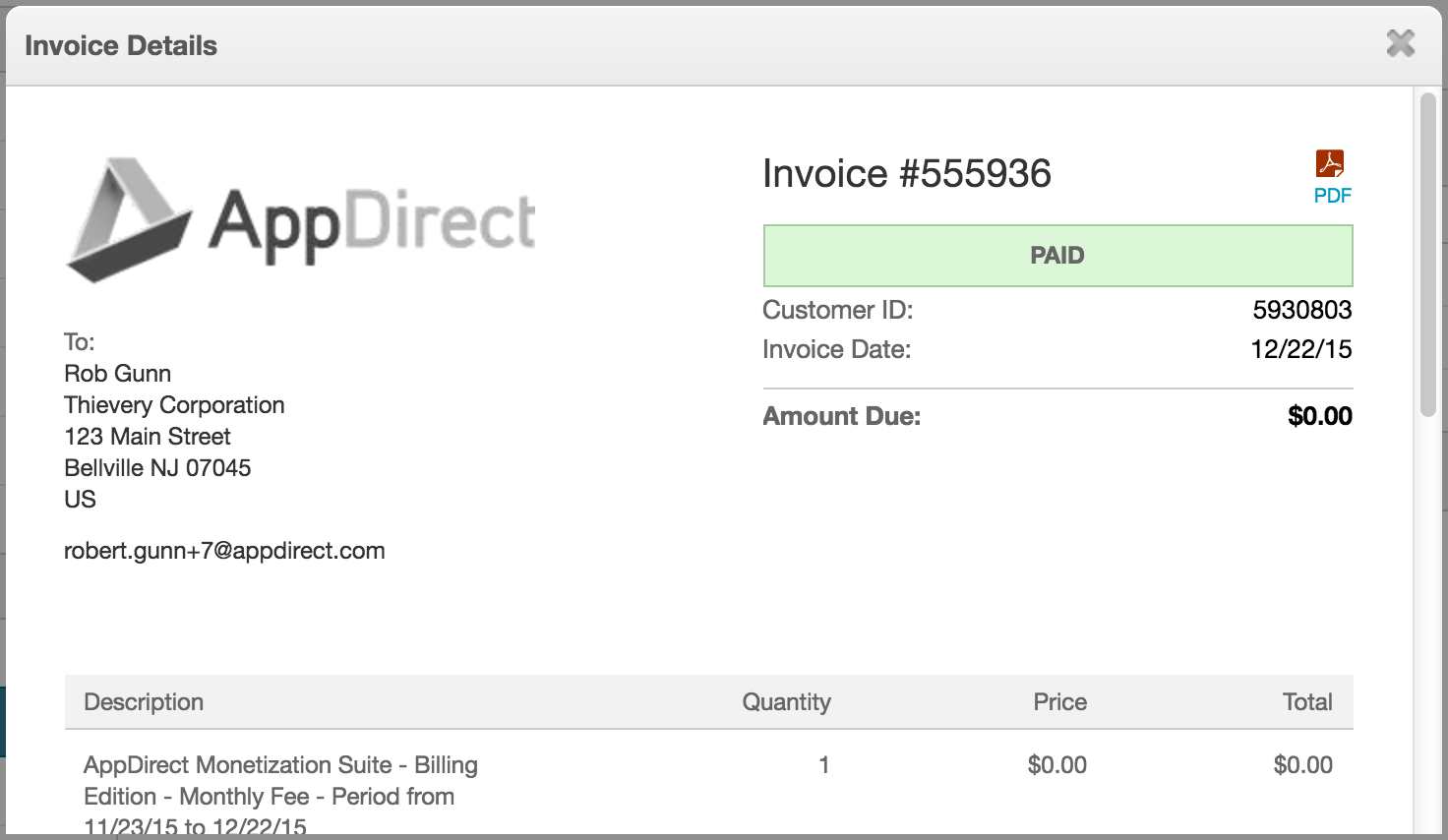
Note the following information in the top portion of the invoice:
- The current state is Paid. The other valid states are Unpaid and Carried.
- Carried invoices have payments that were not processed during their billing period. The cost associated with a carried invoice is carried over and is included in the next invoice and billing cycle.
- The customer's name, company, address, email address, and customer ID are included.
- Click the PDF link to download a printable version of the invoice. This PDF includes exactly the same details that the Invoice Details dialog includes.
- The table at the bottom of the dialog displays the purchase details, including the product name and edition, the billing frequency (monthly), and the billing period (11/23/15 to 12/22/15). This product has no monthly fee.
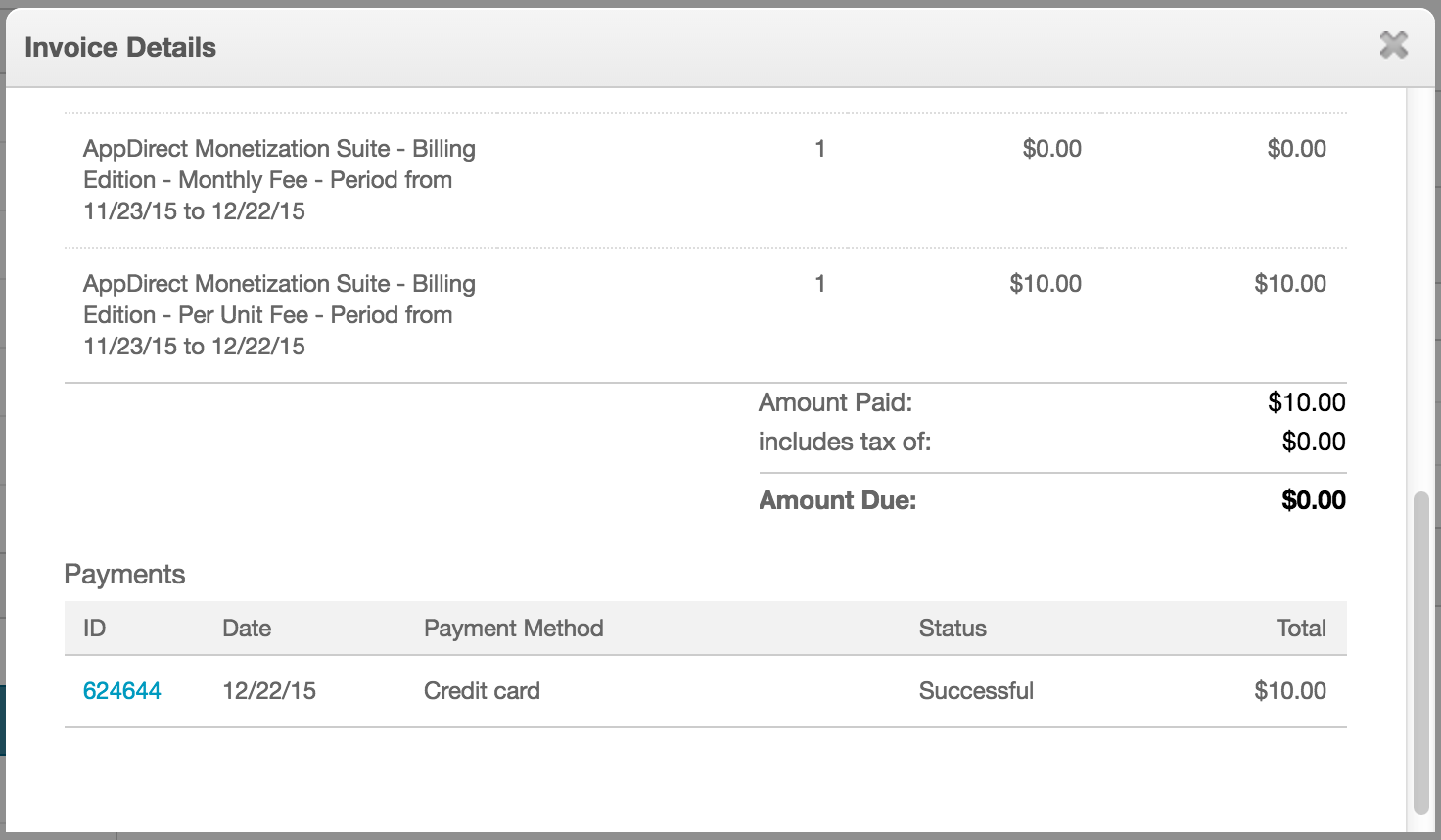
Note the following in the bottom portion of the same invoice:
- While there is no monthly fee, a per unit fee of $10.00 was charged for this product on this invoice. This fee was not taxable.
- The Payments table shows system-assigned Payment ID, which links to the payment record. From this record you can refund the payment automatically or manually.
- The Payments table also shows the Payment Method, Status, and Total.
The following image shows an unpaid invoice for the purchase of the Business Edition - 1000 edition of the Hidden Test Microsoft Office 365 product.
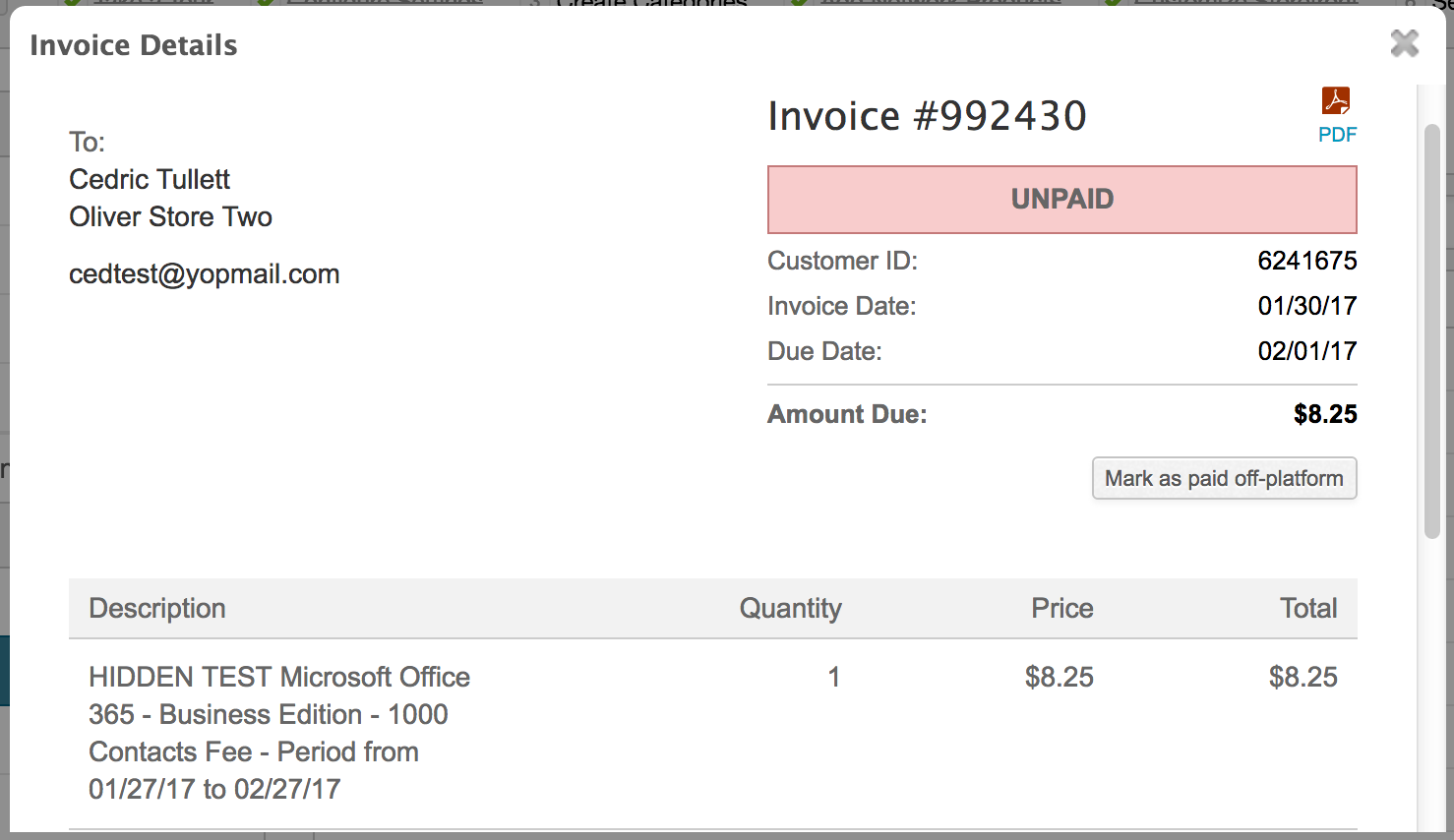
Note the following in the invoice:
- This invoice includes customer and invoice details as the previously described paid invoice.
- Additionally it includes the following:
- Due Date—Date by which the invoice must be paid. Due dates are set based on system default or Marketplace Manager configuration (see Invoice & Credit Memo).
- Mark as paid off-platform button—Update the status of this invoice to Paid when you receive payment outside of the AppDirect platform (see Add or edit off-platform payments).
The following image shows a carried invoice for the purchase of the Small (Rank 4) edition of the Android SAK 2.0 product.
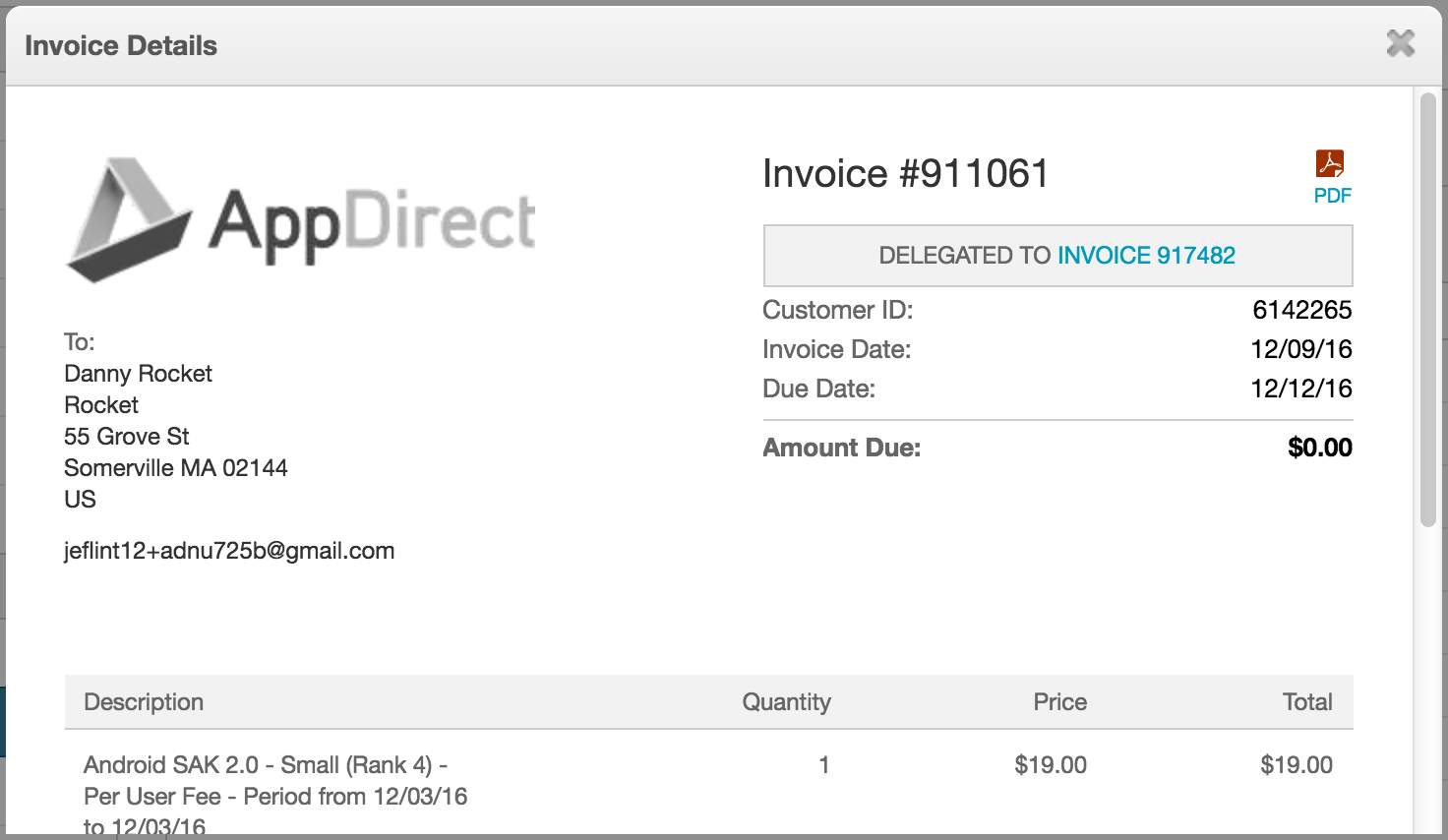
Note the following in the invoice:
- This invoice includes customer and invoice details as the previously described unpaid invoice.
- The state banner (below the invoice number) does not read Carried. Instead it reads Delegated To Invoice 917482. It links to the new invoice generated and sent to the customer in the next billing cycle.
Was this page helpful?
Tell us more…
Help us improve our content. Responses are anonymous.
Thanks
We appreciate your feedback!