Soft bundles in Checkout V2
❗ Important: Soft bundles in Checkout V2 are in Early Availability (EA) status. Bundle management, a compatible storefront theme, and Checkout V2 must be enabled for your marketplace. Contact your AppDirect technical representative to request access and confirm prerequisites.
Soft bundles let Marketplace Managers merchandise a set of products as one catalog item. Buyers discover the bundle like any other product, add it to the cart, and complete a single Checkout V2 purchase. Each included product is listed under the bundle line so buyers can see exactly what they are buying.
Soft bundles are intentionally lightweight: they cover catalog discovery, cart grouping, and checkout only. After purchase, each product becomes its own subscription. There is no bundle-level cancellation, modification, or renewal.
Common uses include packaging related products for merchandising, offering a discount when products are bought together, and attaching complementary services to a primary product.
Prerequisites
Before you configure or sell soft bundles, confirm the following with your AppDirect technical representative:
- Bundle management is enabled for your marketplace.
- Checkout V2 is enabled for the purchases that should use soft bundles.
- Your storefront theme supports soft bundle cart and checkout behavior (Plaza theme with a compatible @appdirect/sfb-theme-components version).
Configure a soft bundle
Marketplace Managers create and publish soft bundles from the existing bundle admin experience. The steps below focus on settings and verification that matter for Checkout V2.
Create and name the bundle
- Go to Manage > Marketplace > Products > Promotions | Bundles.
- Click Add Bundle and complete listing information, including a clear buyer-facing name and description. This is the name buyers see in the catalog, mini-cart, and checkout.
- On the Applications tab, add the products and editions that belong in the bundle (between two and ten products).
For detailed steps, see Create bundles.
Set cancellation restrictions for soft bundles
Open Cancellation Restriction for the bundle and configure the following:
- Allow checkout for partial bundle — Enabled. Buyers can remove individual products during checkout and purchase a subset of the bundle.
- Cancellation as a bundle — Disabled.
- Remove discounts upon a cancellation — Disabled.
Soft bundles do not apply bundle-level rules after purchase. Enabling Cancellation as a bundle or other post-purchase restriction flags does not produce the behavior described in Configure cancellation restrictions for soft bundles in Checkout V2, because subscriptions are independent once checkout completes.
For the full restriction definitions, see Configure cancellation restrictions.
Publish the bundle
Publish the bundle so it appears in the catalog. Review marketplace settings on the bundle if needed, then save.
See Publish bundles.
Apply a discount (optional)
To sell the bundle at a reduced price, create a discount and associate it with the bundle product name on Manage > Marketplace > Products > Promotions | Discounts. A bundle can also be sold without a discount.
Verify the buyer experience
Before promoting the bundle in production, walk through the storefront as a buyer:
- Find the bundle in the catalog and add it to the cart (or use Buy Now).
- Confirm the mini-cart groups the bundle with its constituent products listed underneath.
- Proceed to Checkout V2 and confirm the same grouped layout.
- If testing partial purchase or discounts, follow the buyer actions in the next section.
Buy a soft bundle
The following describes what buyers see and can do in Checkout V2.
Find and add the bundle
Buyers discover the bundle through normal catalog browsing or search. The bundle appears as a single product listing. From the product page, they use Add to Cart or Buy Now (depending on your Product Configurator setting). Both paths lead to Checkout V2.
The mini-cart shows the bundle as one grouped item with each included product listed below it.
Review the bundle in checkout
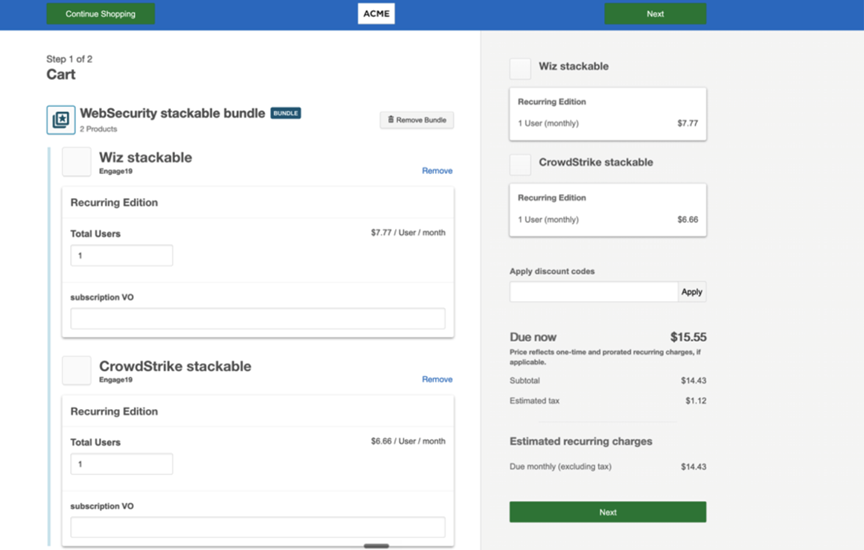
On the cart and checkout pages, the bundle appears as one line. Included products are listed underneath. Buyers review editions, quantities, and pricing before continuing to billing and review.
Products the buyer already owns
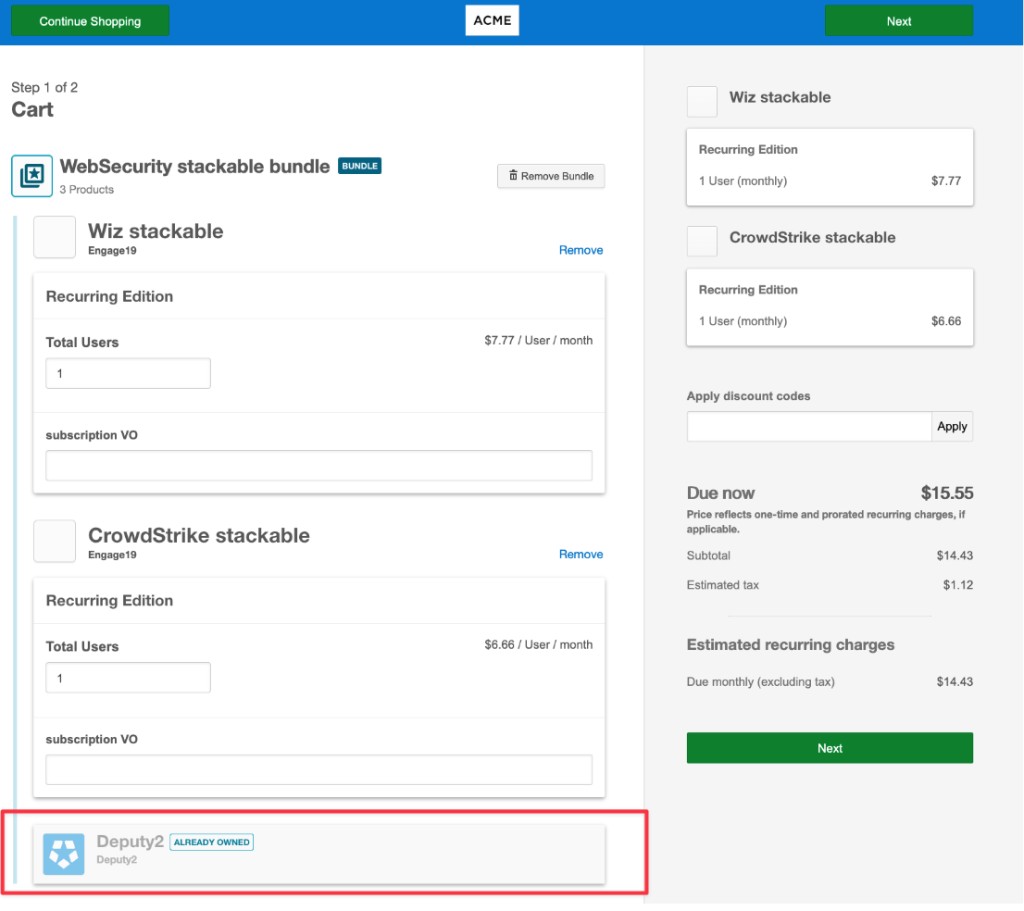
If the buyer already subscribes to a product in the bundle, that product remains visible in the bundle but is greyed out and labeled as already owned. It is not removed from the list.
Remove or restore products (partial purchase)
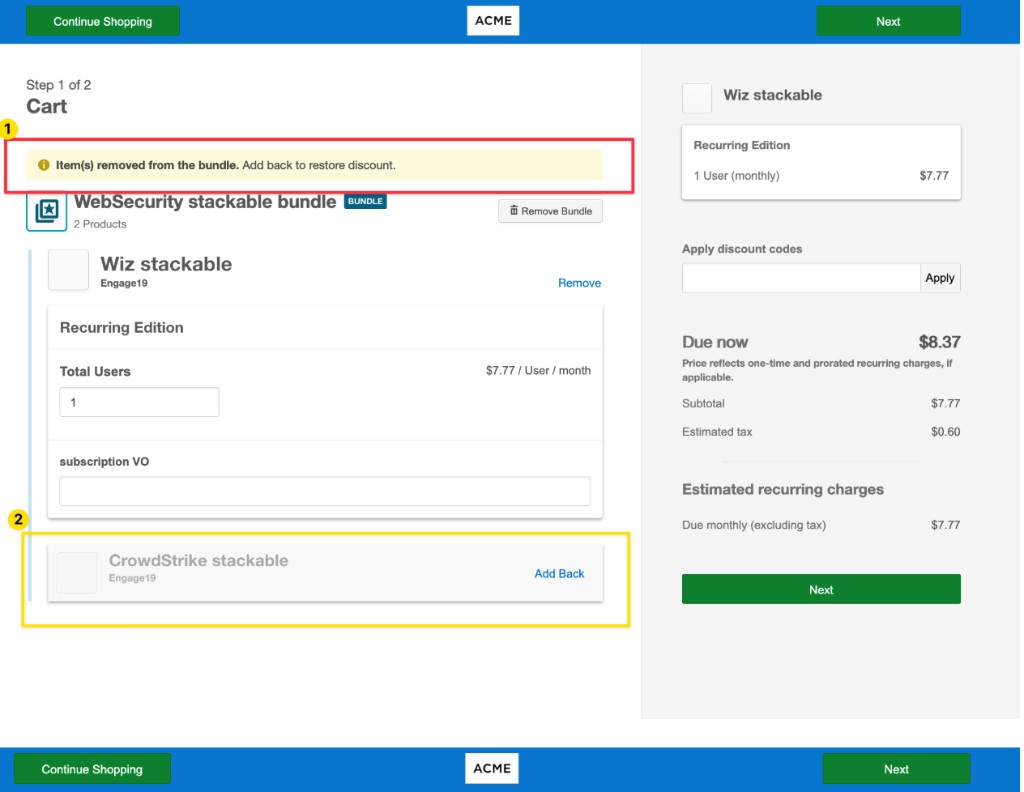
Buyers can remove an individual product from the bundle before placing the order. Removed products stay visible in greyed-out form, and the order total updates to exclude them.
To restore a removed product, use the add-back control on that line before completing checkout. The total updates when the product returns to the bundle.
Discounts when products are removed
If the bundle has a discount and the buyer removes a product, the discount is dropped and a banner explains why.
- Auto-applied discounts — Adding the product back to the bundle re-applies the discount automatically.
- Manual discount codes — The buyer must enter the code again after adding the product back.
Complete the purchase
After the buyer finishes billing and review, checkout creates one independent subscription per product purchased from the bundle. Any bundle discount applies to the price on each of those subscriptions.
After purchase
Soft bundles do not manage subscriptions as a group after checkout:
- Each product is billed and renewed on its own subscription.
- The bundle-discounted price on a subscription can continue through its next renewal even if the buyer cancels another product from the original bundle.
- Cancelling one subscription does not cancel the others.
- There is no bundle-aware modification or renewal workflow.
Manage each subscription through the standard subscription update and cancellation flows for that product.
Was this page helpful?
Tell us more…
Help us improve our content. Responses are anonymous.
Thanks
We appreciate your feedback!