Manage credit memos
📝 Note: This documentation page may refer to Manage > Marketplace in navigation steps. If the Manage option is not available in your navigation, click the grid icon on the top-left corner of your header and click Marketplace.
Use this topic for day-to-day credit memo tasks after creation. For what credit memos are, how credit is applied, and status definitions, see Credit memos. To create credit memos, see Create credit memos.
Apply credit
To apply credit to invoices
- Go to Manage > Marketplace > Dashboard > BILLING | Credit Memo and open the credit memo.
- On the detail page, apply credit toward eligible unpaid invoices for the same customer.
When Automatically apply credit memo to outstanding invoices is enabled under Manage > Marketplace > Settings > BILLING SETTINGS | Billing Functionality > Credit Memo, the platform applies available credit to eligible unpaid invoices without manual action. When that setting is disabled, or when a credit memo was created with Auto-apply this credit memo to outstanding invoices unchecked, apply credit manually using the steps above.
For marketplace and per-memo auto-apply configuration, see Configure credit memo settings and Create credit memos.
📝 Note: To return funds to a customer, process a refund from the Payments page. See Refund payments.
View credit reason (ad hoc credit memos)
For ad hoc credit memos, the Credit reason field on the Credit Memo detail page shows the reason entered at creation.
- Visible to Marketplace Managers and Resellers in the internal UI.
- Hidden when no credit reason was provided.
- Not displayed on the customer-facing credit memo view or in the downloaded PDF.
For more information, see Create credit memos.
Void an unapplied credit memo
Marketplace Managers and Developers can void a credit memo only while its status is Unapplied.
To void a credit memo
- Open the credit memo from Manage > Marketplace > Dashboard > BILLING | Credit Memo.
- Select Void and confirm.
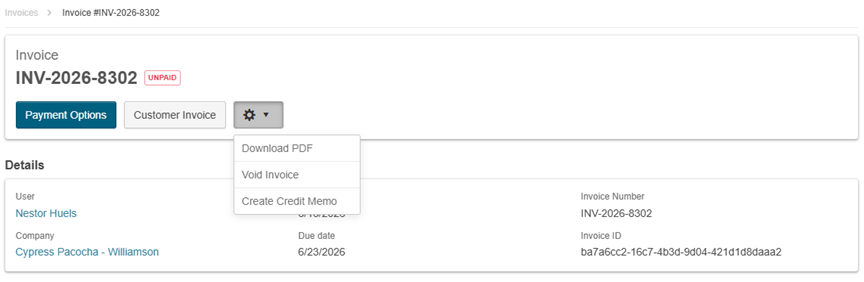
📝 Note: Voiding removes the credit memo from active records; it does not trigger a separate reconciliation process.
Role access
| Role | Typical access |
|---|---|
| Marketplace Managers | Create, view, manage, and void unapplied credit memos marketplace-wide; view Credit reason on ad hoc credit memo detail page. |
| Developers | View; void unapplied credit memos where permitted |
| Company Administrators and Billing Administrators | View and apply credit memos for their company |
| Resellers | View credit memos per indirect-billing invoice rules; view Credit reason on ad hoc credit memo detail page. |
| Internal support roles | View in Credit Memo and Invoice areas as configured |
Settings and related configuration
| Configuration | Details |
|---|---|
| Download a credit memo PDF | Credit Memo detail page |
| Customize PDF layout | Manage > Marketplace > Settings > DOCUMENT BUILDER | Manage Templates — Credit Memo document type |
| Configure document numbering | Manage > Marketplace > Settings > Invoice & Credit Memo — Document numbering. See Configure document numbering. |
| Configure credit memo auto-apply | Manage > Marketplace > Settings > BILLING SETTINGS ** |
| Company users view credits | Manage > Account > Credit Memos (where enabled) |
| Credit limit exposure | Unapplied credit memos reduce credit limit exposure. |
Limitations
- Credits are not shown during checkout or in quote creation (Assisted Sales).
- Credit application details may not appear in all payment reports at the time of application.
- Credit reason on ad hoc credit memo detail pages is not shown on the customer-facing view or PDF.
Was this page helpful?
Tell us more…
Help us improve our content. Responses are anonymous.
Thanks
We appreciate your feedback!