Use billing dashboard
Marketplace managers can use the billing dashboard to get real-time visibility into platform failures and can retry and manually trigger the invoice processing again from the dashboard UI.
📝 Note: This dashboard is available to Marketplace Manager roles only. It is not accessible to customers or reseller managers. Also, this dashboard is available only if you have Invoice V2. If you are not using Invoice V2, contact your AppDirect technical representative to upgrade to Invoice V2.
To view the billing dashboard
-
Go to Manage > Marketplace > Dashboard > BILLING | Dashboard.
The dashboard page opens.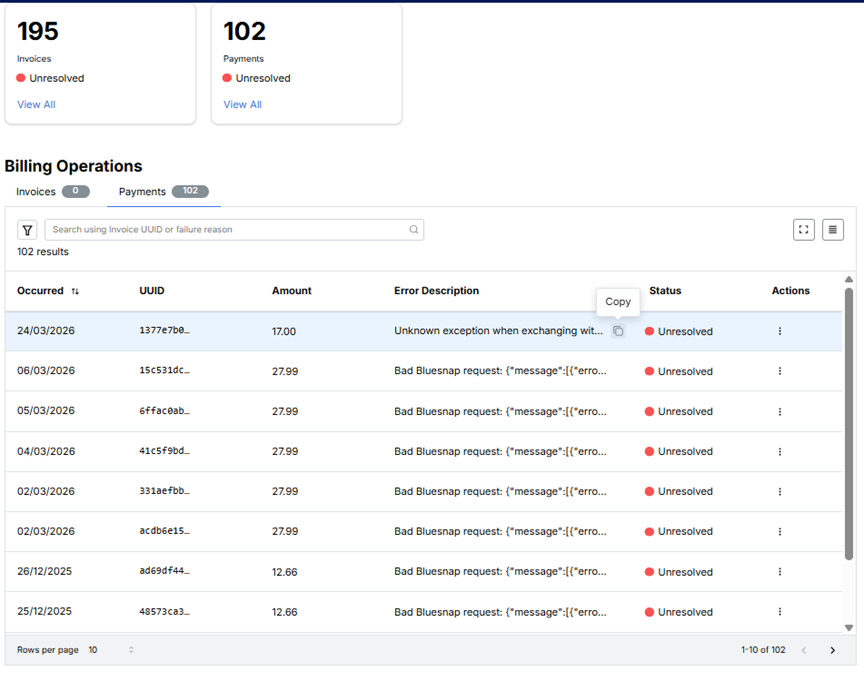
The page displays the following:
- Widgets - Displays the total number of failed invoices and payments.
- Invoices/Taxes - Displays the total number of failed invoices. Click View All in the widget to see the list of failed invoices in Billing Operations table.
- Payments - Displays the total number of failed payments. Click View All in the widget to see the list of failed payments in Billing Operations table.
📝 Note: Clicking View All clears all the applied filters.
- Billing Operations table - Displays the details of the failed invoices and payments.
- Select the Invoices/Taxes tab to display the failed invoices details.
- Select the Payments tab to display the failed payments details.
The selected table displays the following:- Occurred - This column displays the date when the failure occurred. Click the column header to sort by this date.
- UUID - This column displays the UUID of the failed invoice/taxes or payment.
- Type - This column displays the type of the failure - failed invoice/taxes or failed payment.
- Amount - This column displays the transaction amount with currency for each invoice or payment log entry so you can see values without opening a record. Click the column header to sort by amount.
- Error Description - This column displays the exact error descriptions due to which the invoice or payment failed. Hover over an error description to use the copy option to paste long or technical messages (for example, payment gateway errors) into support tickets or your own records.
- Status - This column displays the status of the invoice or payment. Currently the status available is - Unresolved.
- Actions - This column gives you the options to view the details of the invoice and create a support ticket.
- Sort the table based on Occurred and Amount columns. You can apply multi-level sorting across these two columns (for example, order by date and then by amount) when reviewing billing failures.
- Click the Rows per page option at the bottom of the table to increase or decrease the number of rows displayed.
- Click
 to make the table full screen and click
  to come back to normal screen.
 - Click
 to toggle the density of the rows displayed in the table.
- Widgets - Displays the total number of failed invoices and payments.
View details and create support ticket
-
Do one of the following to view the details:
-
Click the required row.
OR
-
In the Actions column on the dashboard page, click the three dots of the required invoice and select View Details.
A dialog box containing details of the invoice/payments such as User, Company UUIDs, specific invoice numbers and the detailed failure reason appears.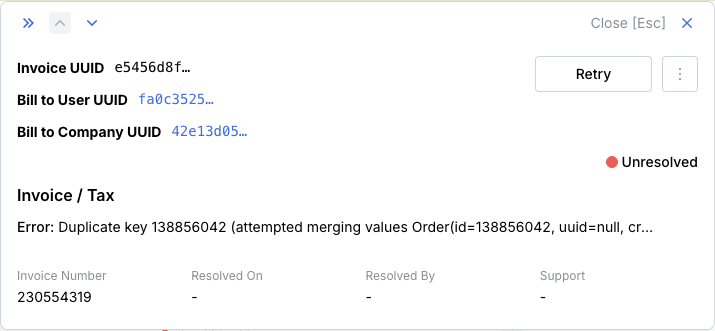
-
-
Click Retry to reprocess the failed invoice. A notification appears at the bottom of the screen to inform you that the request to reprocess the invoice is sent to the system. You can refresh the page to see the updates. Once the issue is resolved it is no longer visible in the table.
-
If the issue is still not resolved you can create a support ticket, to create a support ticket, do one of the following:
-
Click the three dots icon in the details dialog box and select Create Support Ticket.
OR
-
In the Actions column on the dashboard page, click the three dots of the required invoice and select Create Support Ticket.
A support ticket is created with all the details of the issue, and a confirmation email is sent to the reporter with the details of the support ticket created. Once the issue is resolved the entry is removed from the Billing Operations table.
-
Search and filter option
- In the Billing Operations table, click the filter icon to filter the table based on the date range.
- In the search bar enter the Invoice UUID, or specific failure Reason (such as tax failures or duplicate errors) to search for specific entries.
Frequently asked questions (FAQs)
Have more questions regarding the Billing Dashboard? This section provides answers to some of the commonly asked questions.
Who is the primary user for the Billing Dashboard?
The ideal user for this dashboard is the Marketplace Manager. This role is responsible for overseeing the platform's billing operations.
What are the key benefits of the Billing Dashboard for a Marketplace Manager?
Marketplace managers gain real-time visibility into platform failures related to billing. This allows them to quickly retry or manually trigger invoice processing again directly from the UI.
Why can't customers or reseller managers access the dashboard?
The dashboard is designed for high-level operations management, such as resolving platform-wide billing failures, which falls under the Marketplace Manager's remit. It is explicitly not accessible to customers or reseller managers.
Is the Billing Dashboard available to all organizations?
No, the dashboard is only available if your organization has implemented Invoice V2.
What is the workflow after a Marketplace Manager successfully retries a failed invoice?
After clicking Retry, a notification confirms the request has been sent. You can refresh the page for updates. Once the issue is resolved, the entry is no longer visible in the Billing Operations table.
Was this page helpful?
Tell us more…
Help us improve our content. Responses are anonymous.
Thanks
We appreciate your feedback!