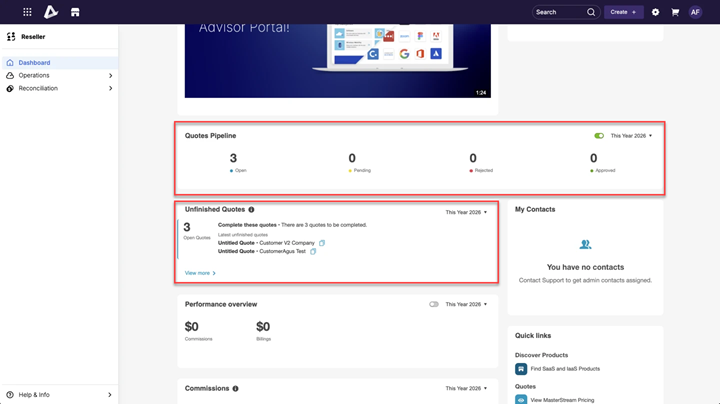
Quoting pipeline view on Reseller Dashboard
Moderate Upgrade
This release introduces two new widgets — Quotes Pipeline and Unfinished Quotes — to the Reseller Dashboard, giving Agents and Managers actionable visibility into the status of their quotes directly from the dashboard. Previously, managers lacked a consolidated view of pipeline health, and discovering a quote that needed action required a manual search on the quotes listing page.
-
Two new dashboard widgets are now available on the Reseller Dashboard:
- Quoting Pipeline Overview — A horizontal, color-coded pipeline visualization of quotes grouped by status (Draft, Open, Pending, Rejected, Approved, Purchased) with counts per stage. When extended statuses are enabled, additional statuses such as Rejected and Error are displayed. Clicking on the status navigates the user to the quotes listing page pre-filtered by that status (e.g., clicking "Pending" applies both "Pending for Manager Approval" and "Pending for Customer Approval" as filters).
- Unfinished Quotes — A call-to-action widget that prominently displays the number of open quotes for the current user, along with a direct link to the actual quote allowing the reseller to immediately take action over those open quotes. You can also copy the quote ids if required from the widgets.
-
Resellers can spot bottlenecks and assess pipeline health at a glance without leaving the dashboard.
-
One-click navigation from any pipeline stage or the Unfinished Quotes into the corresponding pre-filtered quotes listing reduces time-to-action.
-
Surfaces unfinished quotes as an actionable dashboard item, helping drive quote completion and reduce drop-off.
📝 Note:
- The pipeline widget displays only quotes belonging to the currently logged-in reseller within their company. The full company-wide quote list remains accessible from the main Quotes page.
- Additionally, widget data does not update in real time — there may be a short delay before recent changes are reflected.
Feature enablement
This feature is not enabled by default. Contact your AppDirect technical representative to request it.
Setting enablement
- The widgets rely on the reseller dashboard v2 being enabled for the marketplace.
- For widget visualization, the marketplace manager must enable the widgets to be displayed for the reseller (Dashboard v2 > Edit Dashboard > Add Widgets).
Documentation
Refer to the following:
Was this page helpful?
Tell us more…
Help us improve our content. Responses are anonymous.
Thanks
We appreciate your feedback!