Sync Microsoft subscription end dates on order detail
Moderate Upgrade
Marketplace Managers and authorized Customer Support users can now sync Microsoft subscription end and contract dates directly from the order detail page. This action updates marketplace contracts and end dates from the Microsoft commitment end date when validations pass.
Previously, correcting end-date discrepancies for individual subscriptions required API calls or bulk remediation workflows outside the order detail experience.
Where to find the sync action
On the order detail page for an eligible Microsoft NCE subscription, click Sync end dates. A confirmation dialog appears before the sync runs.
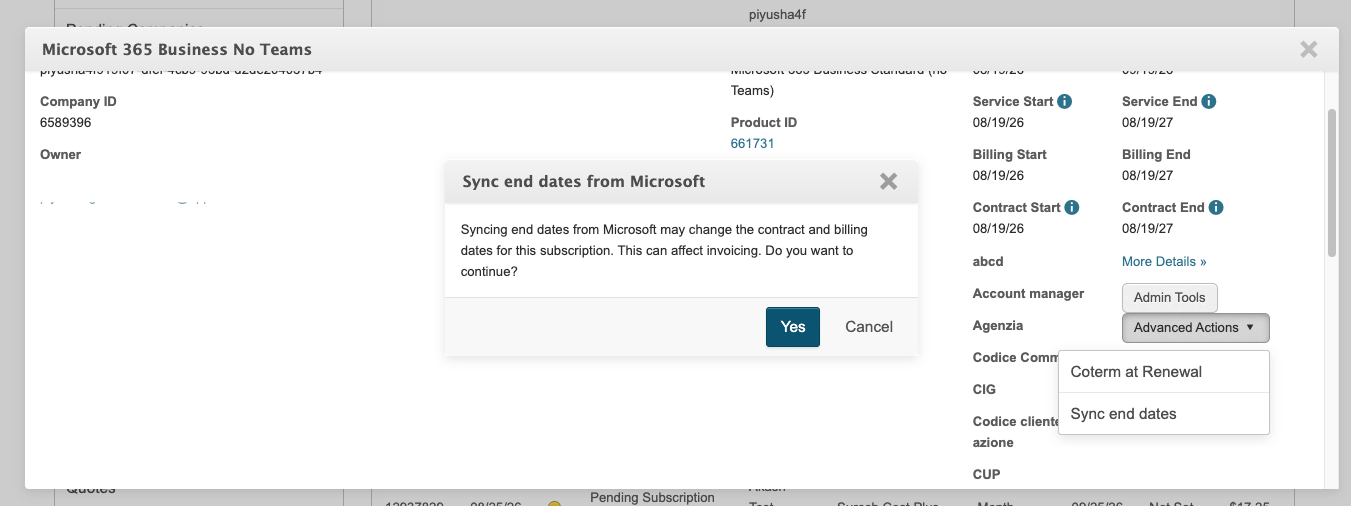
When is the sync action available
The Sync end dates button appears when all of the following are true:
- The feature is enabled for the marketplace.
- The user is a Marketplace Manager, or Customer Support with the Sync Subscription with Microsoft role permission enabled.
- The subscription is an active Microsoft NCE subscription with a resolvable MOSI subscription ID.
- The subscription is not renewing within the next 3 days.
The action does not check whether an end-date discrepancy exists before it is shown. If no sync is required, the UI displays a corresponding message after you confirm the action.
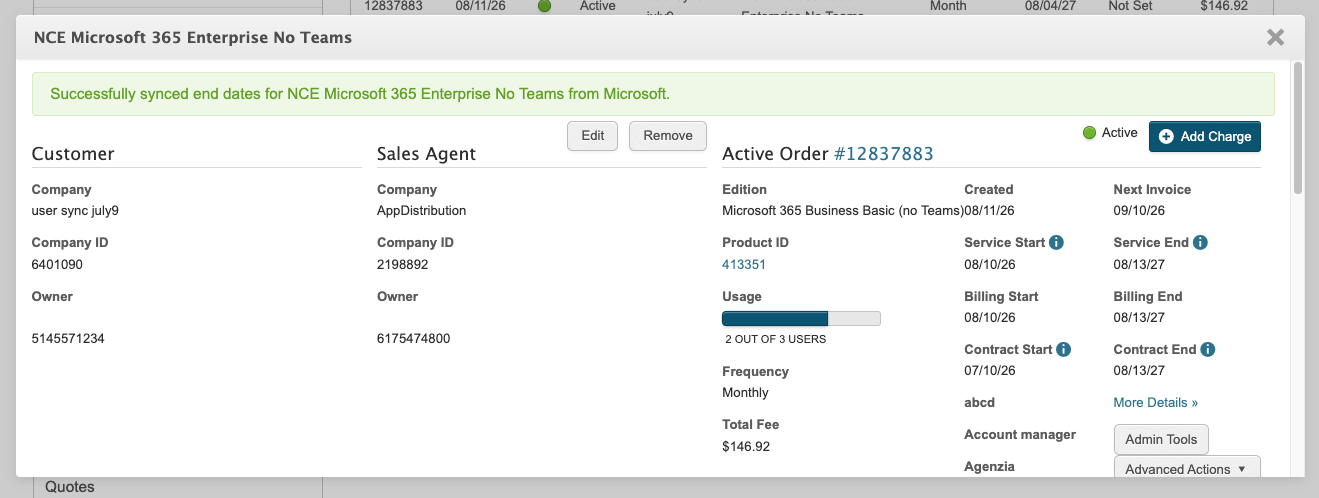
After syncing the dates, the order detail page shows one of the following outcomes:
- Successfully synced — Marketplace end dates are updated to reflect Microsoft.
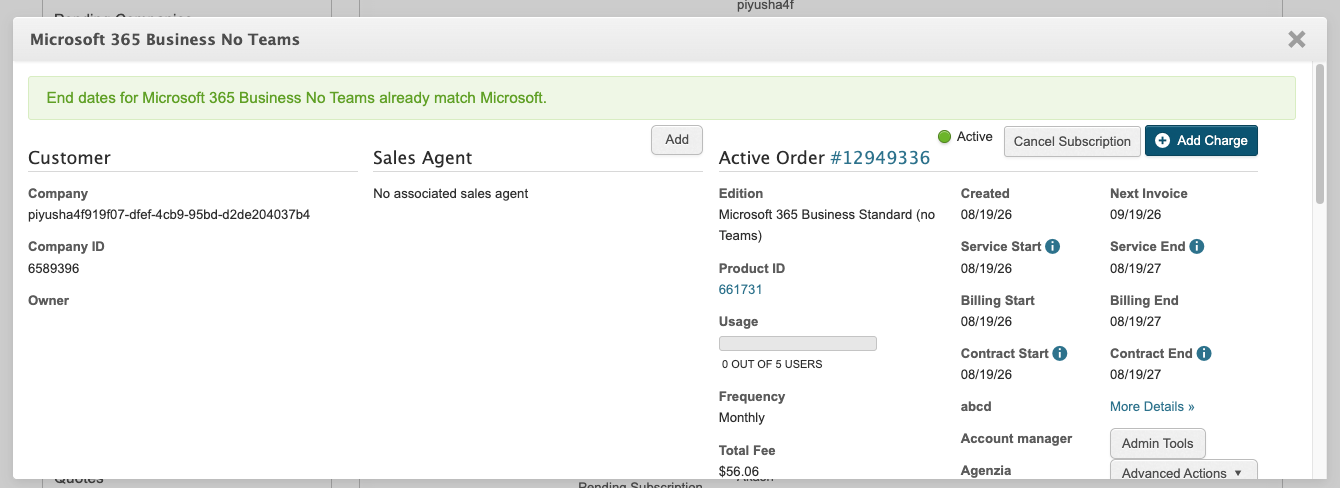
- Already synced — End dates already match Microsoft. No updates are made.
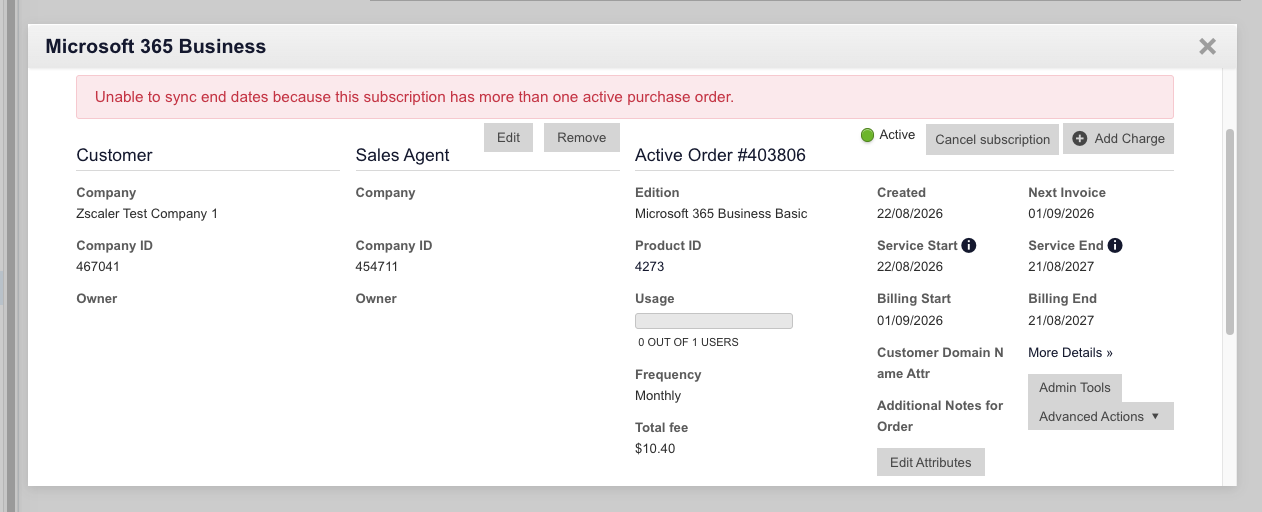
- Multiple active orders — The sync cannot run when more than one active order exists for the subscription. An error message explains that the action is unavailable.
❗ Important: Syncing subscription end dates may affect invoicing. Review the subscription and billing impact before confirming the action.
Prerequisites
- The subscription must be an active Microsoft NCE subscription with a resolvable MOSI subscription ID.
- Microsoft reseller integration must be configured on the marketplace.
Feature enablement
This feature is not enabled by default. Contact your AppDirect technical representative to request it.
Setting enablement
Marketplace Managers can use this action when the feature is enabled for the marketplace. Customer Support users require the Sync Subscription with Microsoft role permission.
- Go to Manage > Marketplace > Settings > Settings | Roles. The Role Permissions page opens.
- In the Customer Support role section, enable Sync Subscription with Microsoft.
Documentation
Refer to Sync end dates on order detail.
Was this page helpful?
Tell us more…
Help us improve our content. Responses are anonymous.
Thanks
We appreciate your feedback!