Edit pricing for tiered pricing models in quotes
You can edit custom prices for products that use a tiered or volume pricing model directly from a quote. This lets you set different prices for each tier from a single pricing table, instead of applying one markup or markdown across all tiers. This is useful when customers are expected to increase seats over time and pricing needs to be defined in advance for higher tiers.
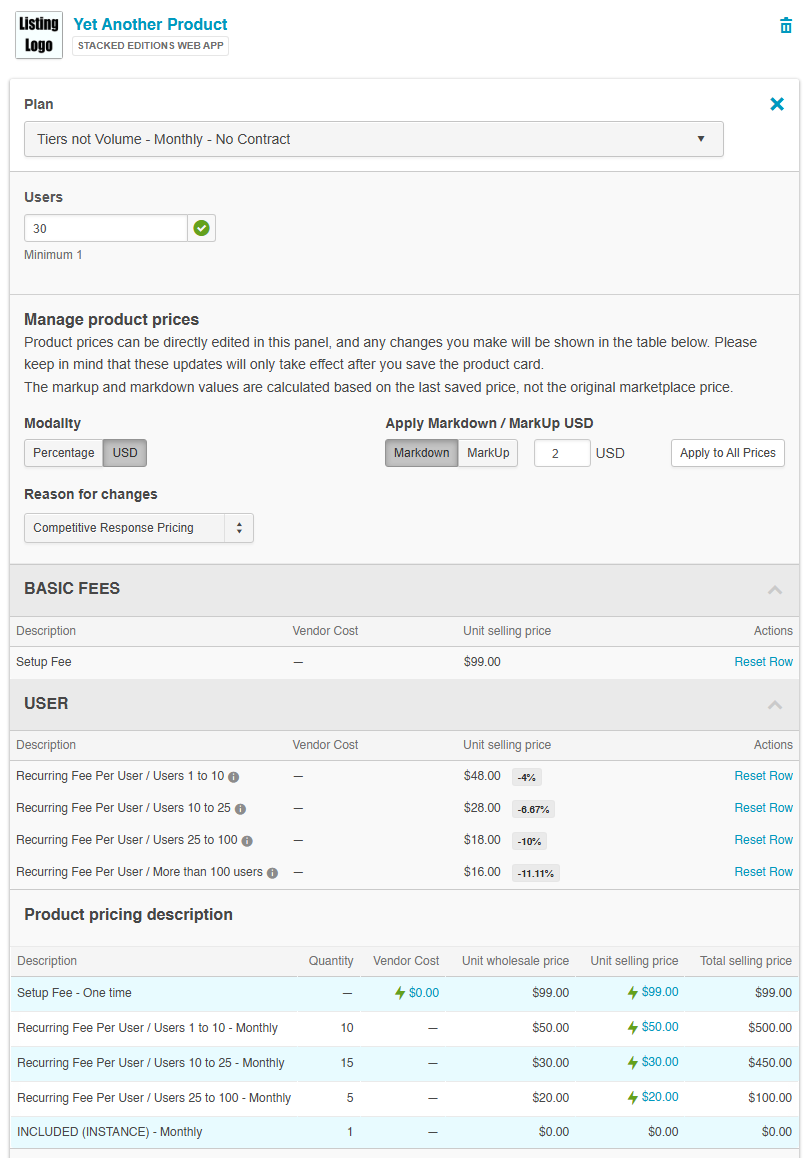
To edit custom tiered pricing,
-
Go to Manage > Reseller > Home | Quotes. Select the quote you want to edit.
-
Click the gear icon on the selected quote, and then click Edit Quote. This opens the quote in edit mode, showing the incomplete order view.
-
Locate the product with tiered or volume pricing, and expand its details.
-
Identify the tier you want to update in the Manage Product Prices section.
-
In the appropriate price column, enter the new custom price. You can only edit prices you have permission for (Wholesale Price or Unit Selling Price). A percentage indicator next to the price shows the difference from the original price.
📝 Note: To apply a markup or markdown for all prices, enter the markup/markdown percentage or value (depending on the option you’ve selected), and then click Apply to All Prices.
-
In the Reason for changes field, select a reason for the price change. You cannot save price changes without specifying the reason.
-
Save changes to the prices.
-
Verify the updated prices in the Product Pricing Description table. A lightning icon appears next to any price that has been customized.
Was this page helpful?
Tell us more…
Help us improve our content. Responses are anonymous.
Thanks
We appreciate your feedback!